Create and Manage Business Cards
When you login to https://LinkedCards.com , you will be taken to "My Business Cards" module. If you happen to be in a different module, click on "My Business Cards" on the left menu.
This will list all of your business cards.
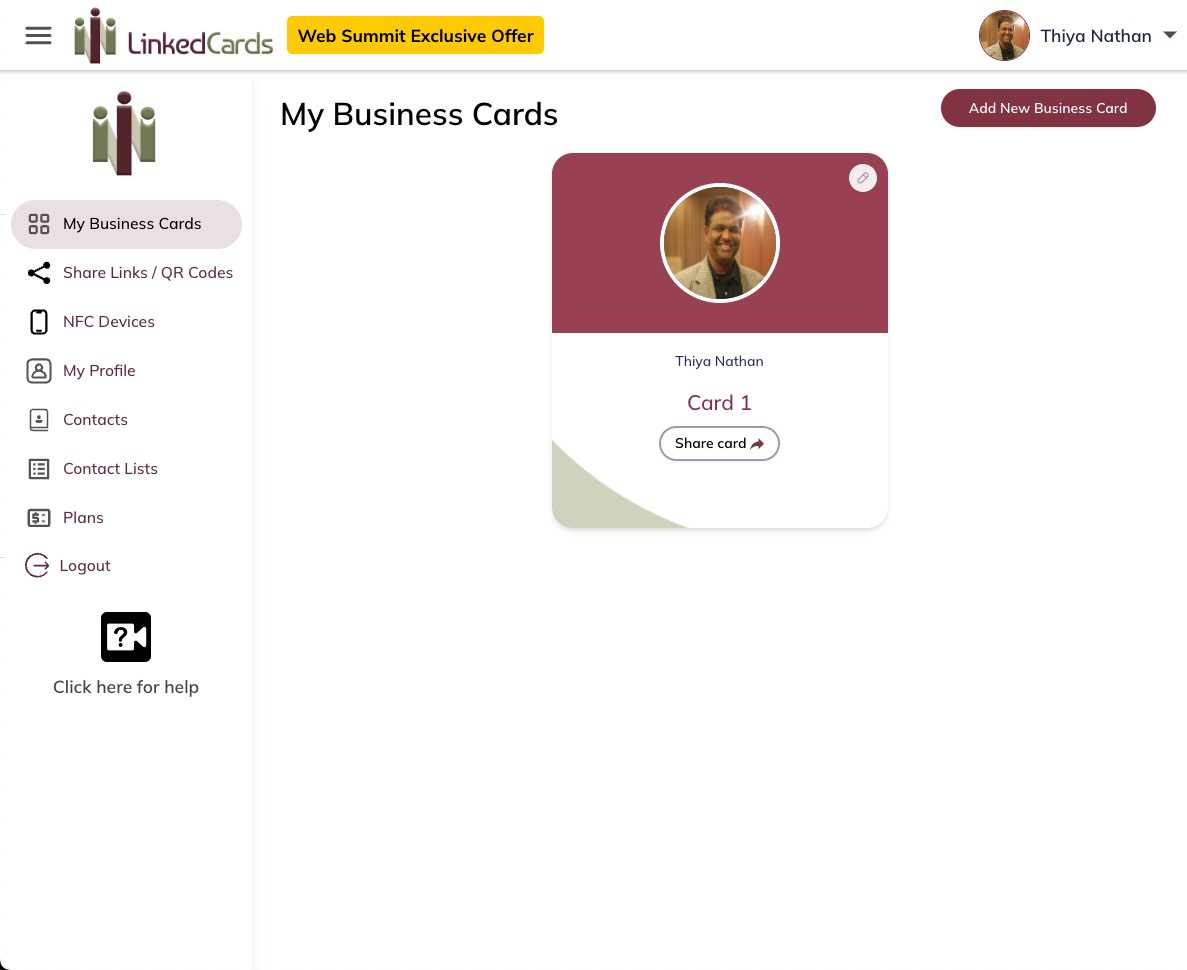
Clicking anywhere on the Business Card or clicking on the edit button (Pencil icon) on business cards will launch the Business Card Designer.
Add a Business Card
Clicking "Add new Business Card" will launch the "Add Business Card" wizard.
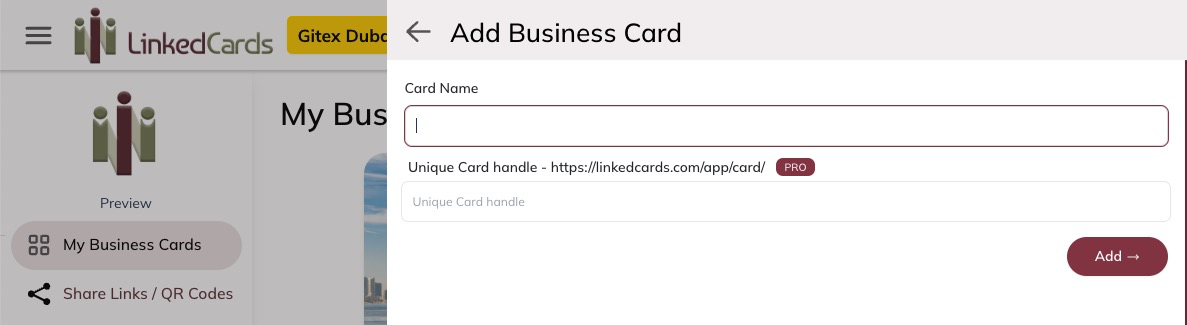
On this screen enter the following information:
Card Name:
Card name is only used as a reference for you. This is not visible anywhere else.
Unique Card Handle:
This is a PRO feature, only available on PRO plan.
This allows you to customize the URL to a user friendlier name.
something like 'nathan-personal'.
https://linkedcards.com/app/card/nathan-personal
If you're on the FREE plan, Automatically an id will be assigned as the card handle.
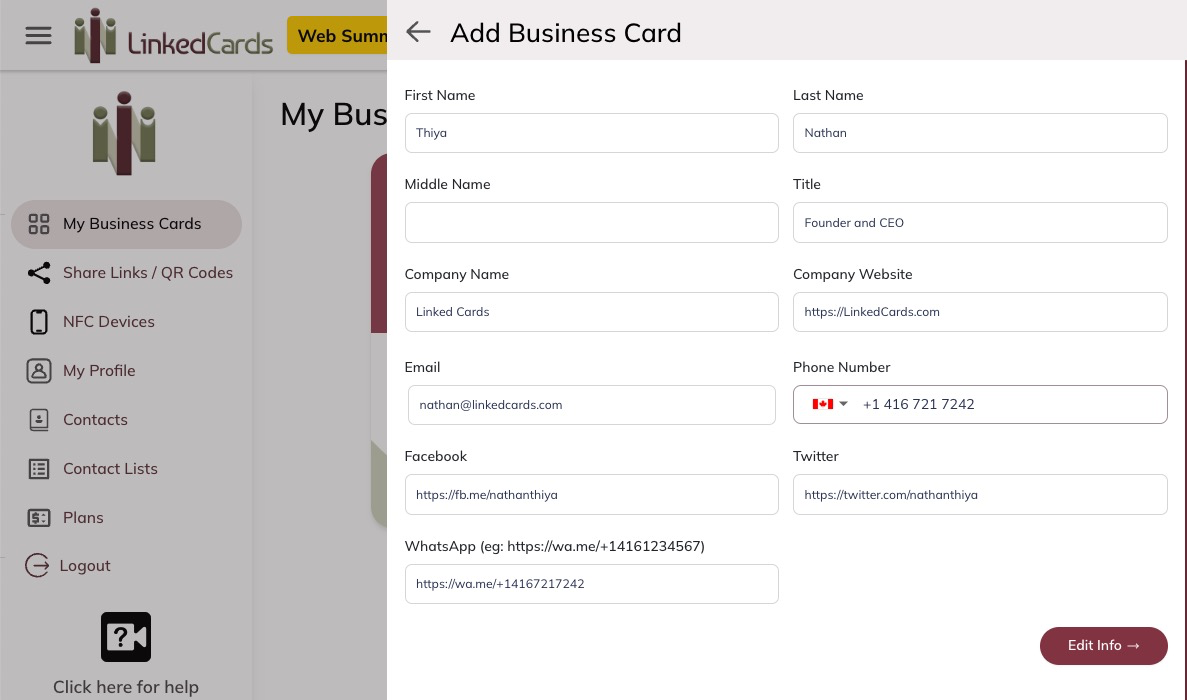
On this screen enter the following information:
First Name:
Enter your first name
Last Name :
Enter your last name
Middle Name :
Enter your middle name
Title :
Enter your Job title
Company Name:
Enter your company name
Company website:
Enter your company website. eg: https://LinkedCards.com
Email :
Enter your email address
Phone Number:
Enter your phone number
Facebook:
Enter your facebook URL. You will find this as the URL address when you're in your facebook profile page.
It will be something like https://facebook.com/yourhandle or https://fb.me/yourhandle
X (formally Twitter):
Enter your twitter URL. You will find this as the URL address when you're in your twitter profile page.
It will be something like https://twitter.com/yourhandle or https://x.com/yourhandle
WhatsApp:
Enter your WhatsApp phone number. This is simply your phone number prefixed with https://wa.me/+[your phone number]
The + sign is important to have in front of your phone number with country code. This is the international phone number format.
Once you fill this form and hit "Edit Info" button, you will be taken to the "Business Card Designer"
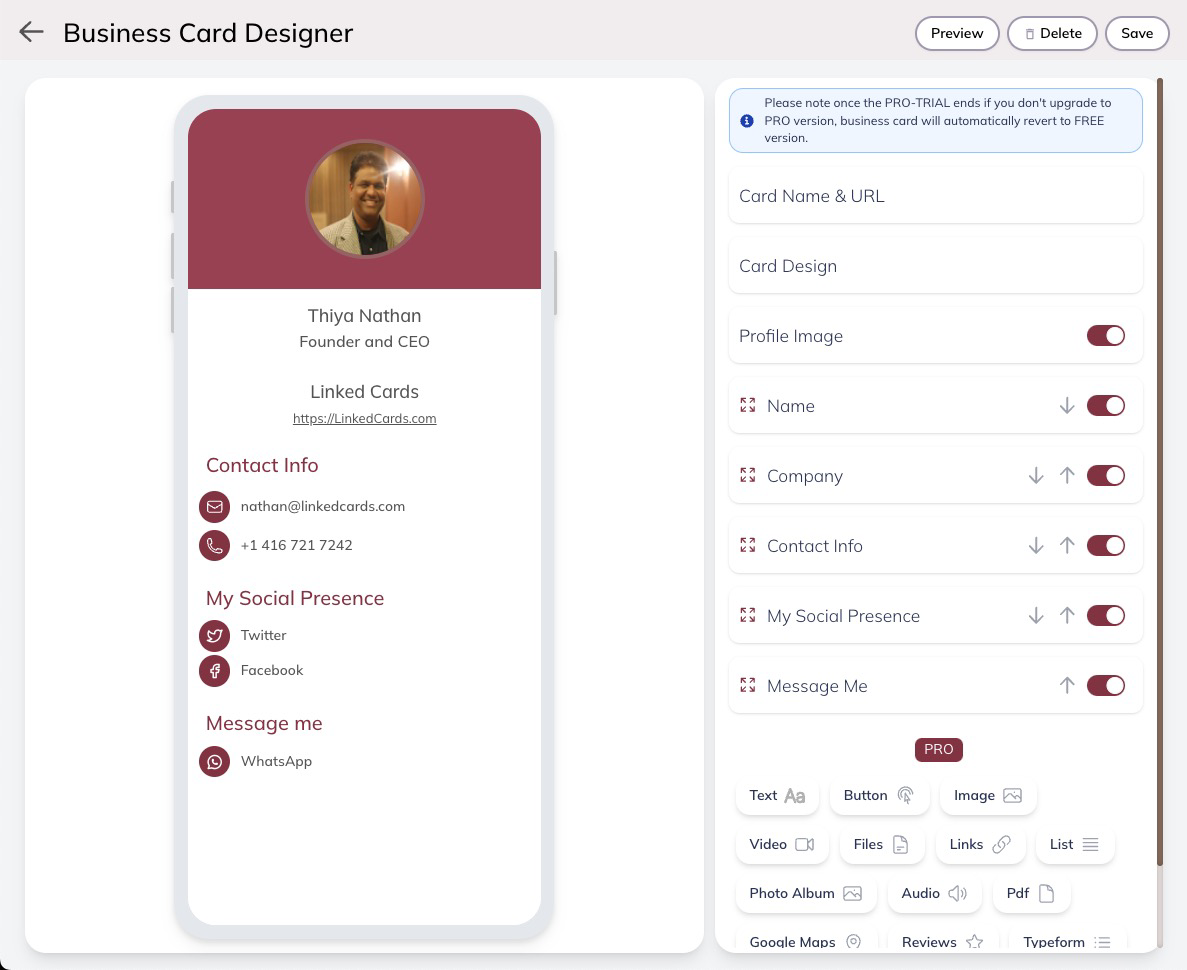
For full details on "Business Card Designer" refer to "Business Card Designer" section
Edit a Business Card
Clicking anywhere on the Business Card or clicking on the edit button (Pencil icon) on business cards will launch the Business Card Designer.
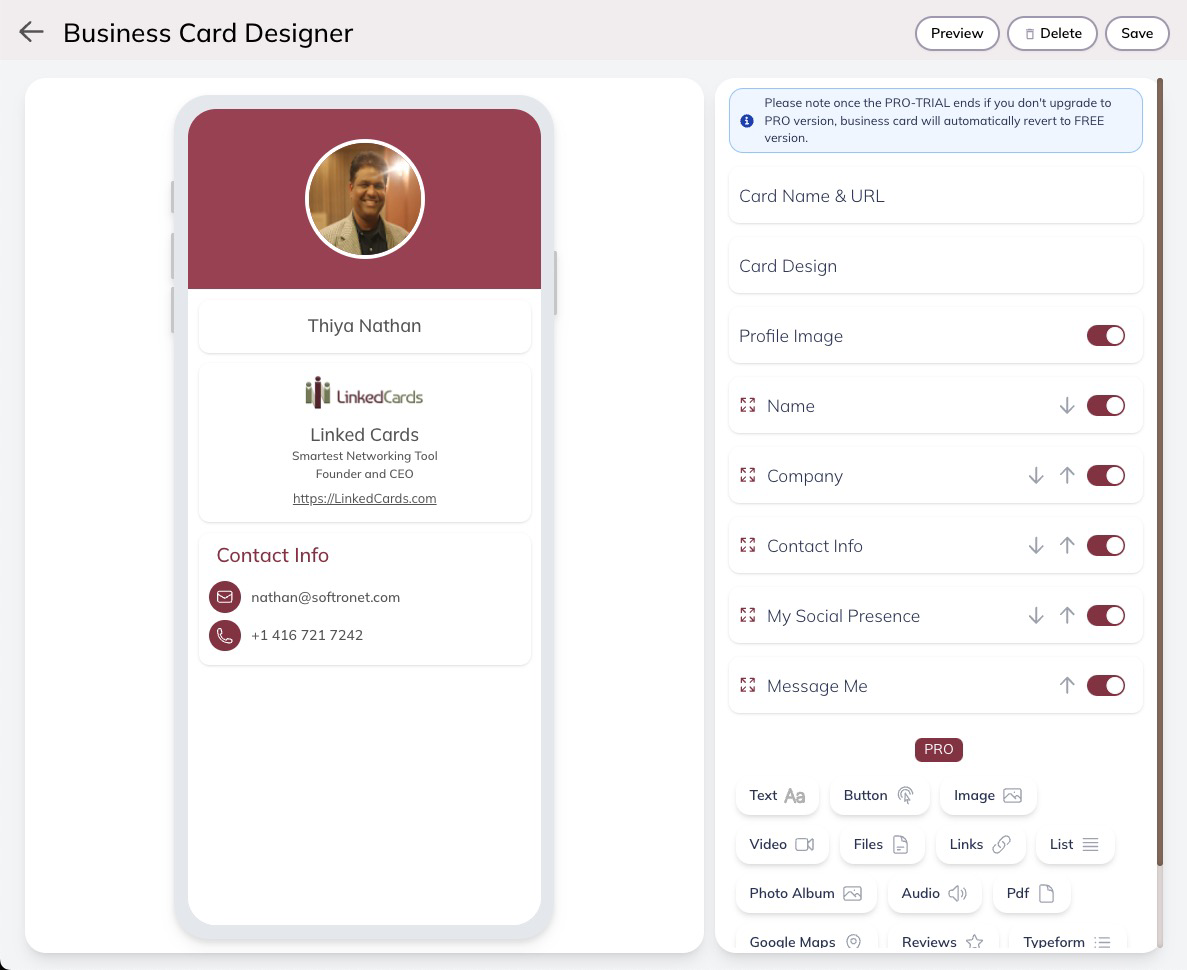
For full details on "Business Card Designer" refer to "Business Card Designer" section
Business Card Designer
Business Card Designer works fine on Mobile phone, however it works better on desktop computer, laptop or tablet. Once you design your business card to your likings, the business card can be managed from your mobile device.
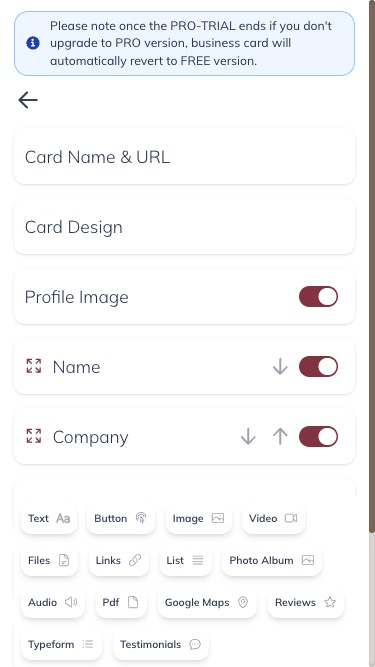
Business Card Designer on Mobile Phone
Business card Name & URL
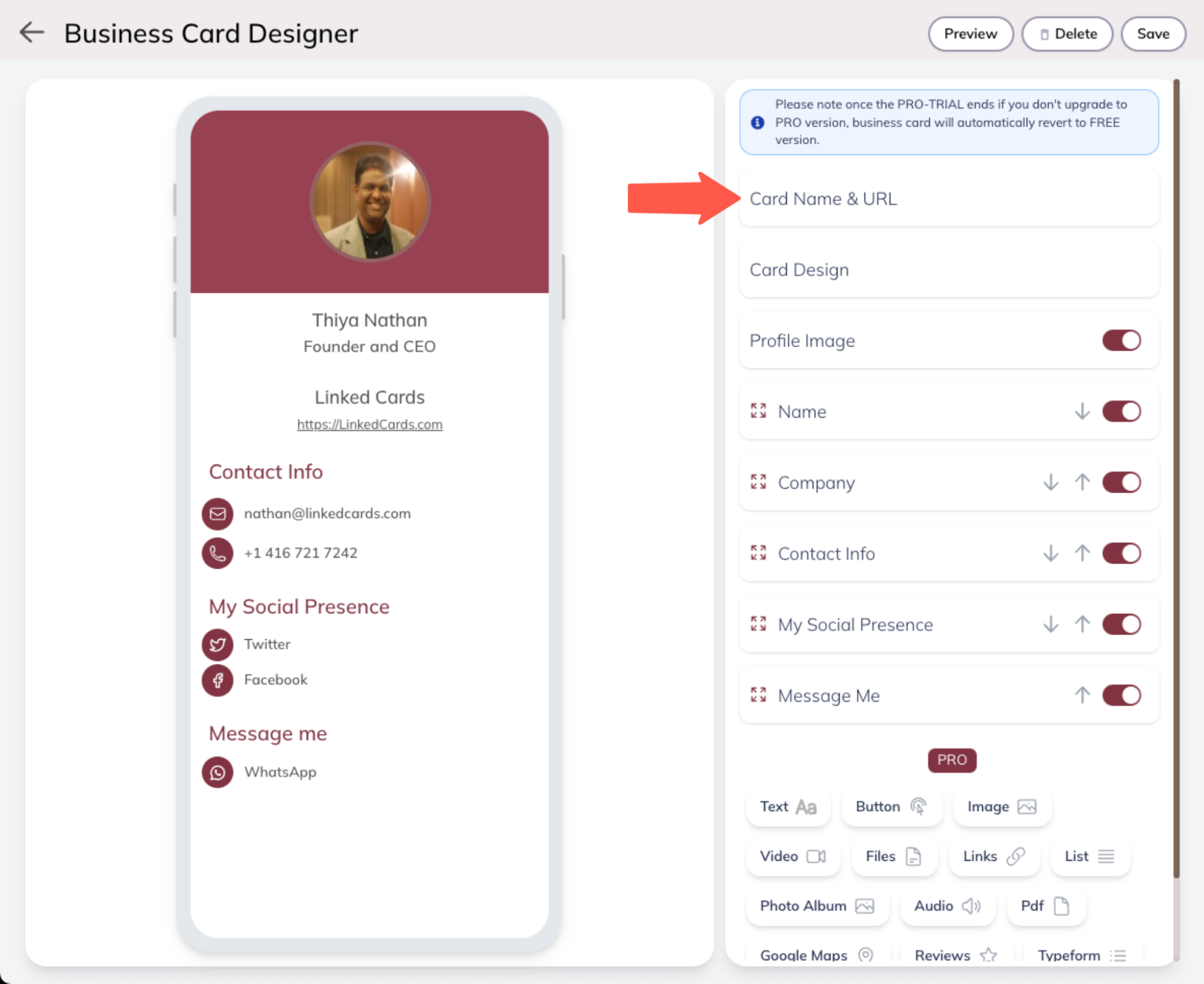
Click on the "Card Name & URL" tile to see the settings.
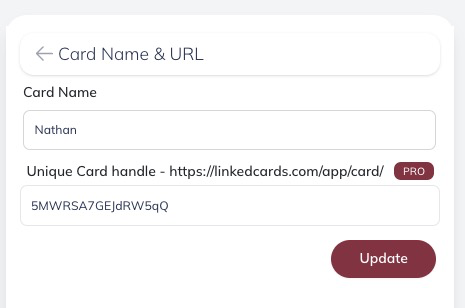
Card Name:
Card Name is only used for your reference. It is not used any where.
Unique Card Handle:
This is a PRO feature and only available for users with PRO plans.
This will allow you to have a unique friendly name.
The URL will look like the following:
https://linkedcards.com/app/card/nathan-linkedcard
OR
https://linkedcards.me/nathan-linkedcard
If you have FREE plan or PRO-TRIAL, leave it as the auto generated id.
Business Card Design
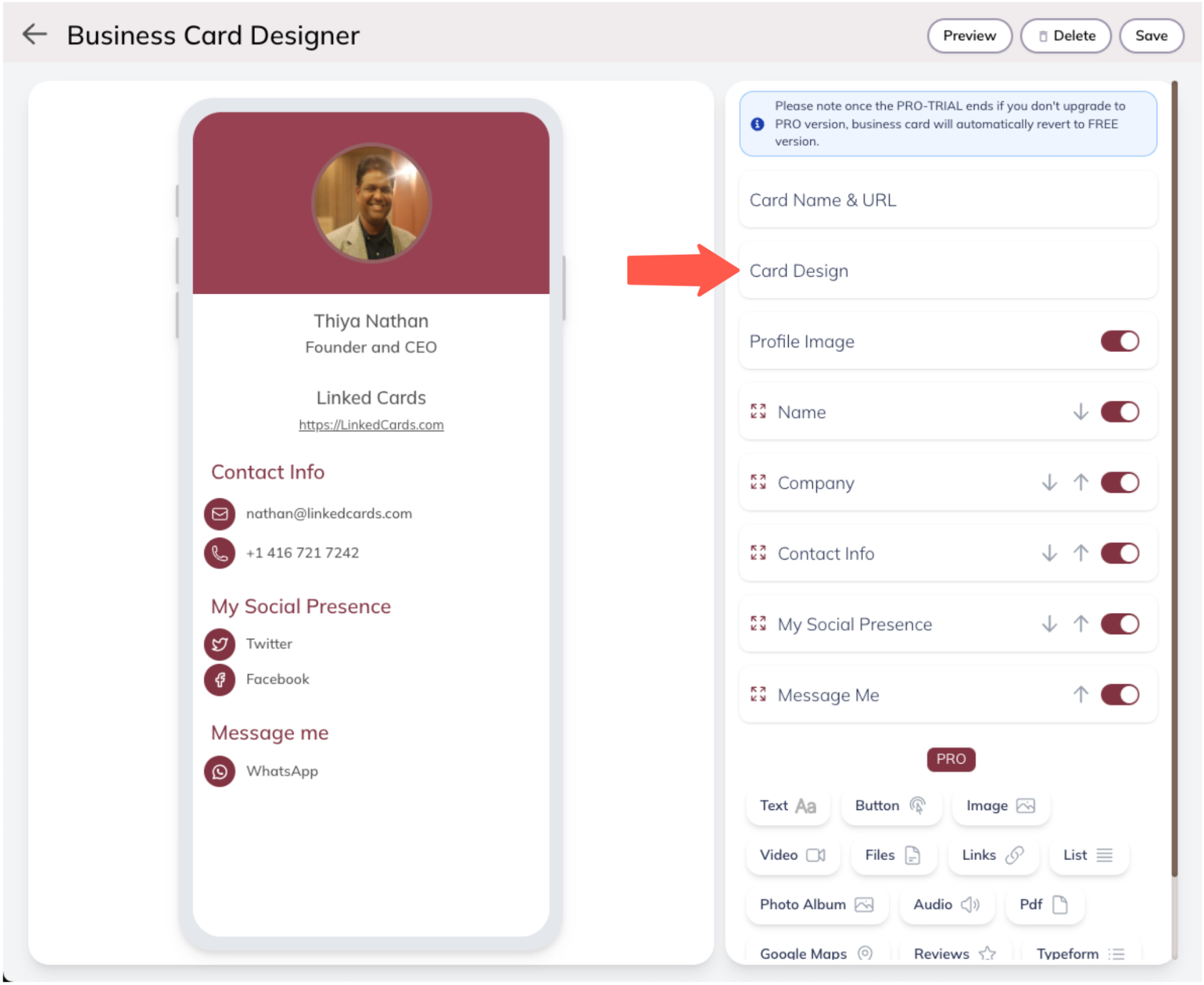
Clicking on "Card Design" will launch the "Card Design settings"
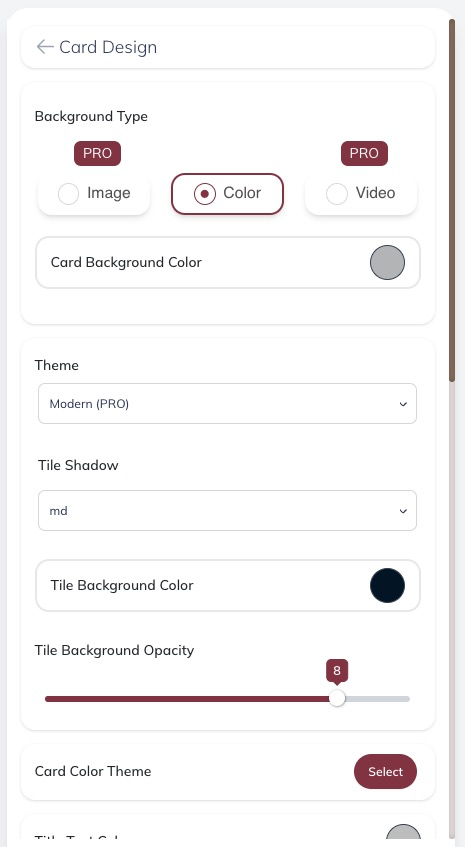
Card Design Settings Panel
Business Card Background Color
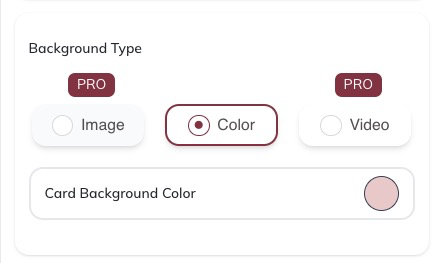
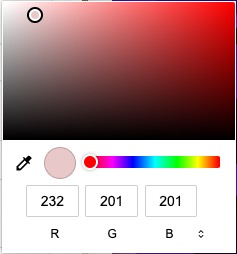
Business cards Background can be a color. If you select color, you can change the background color.
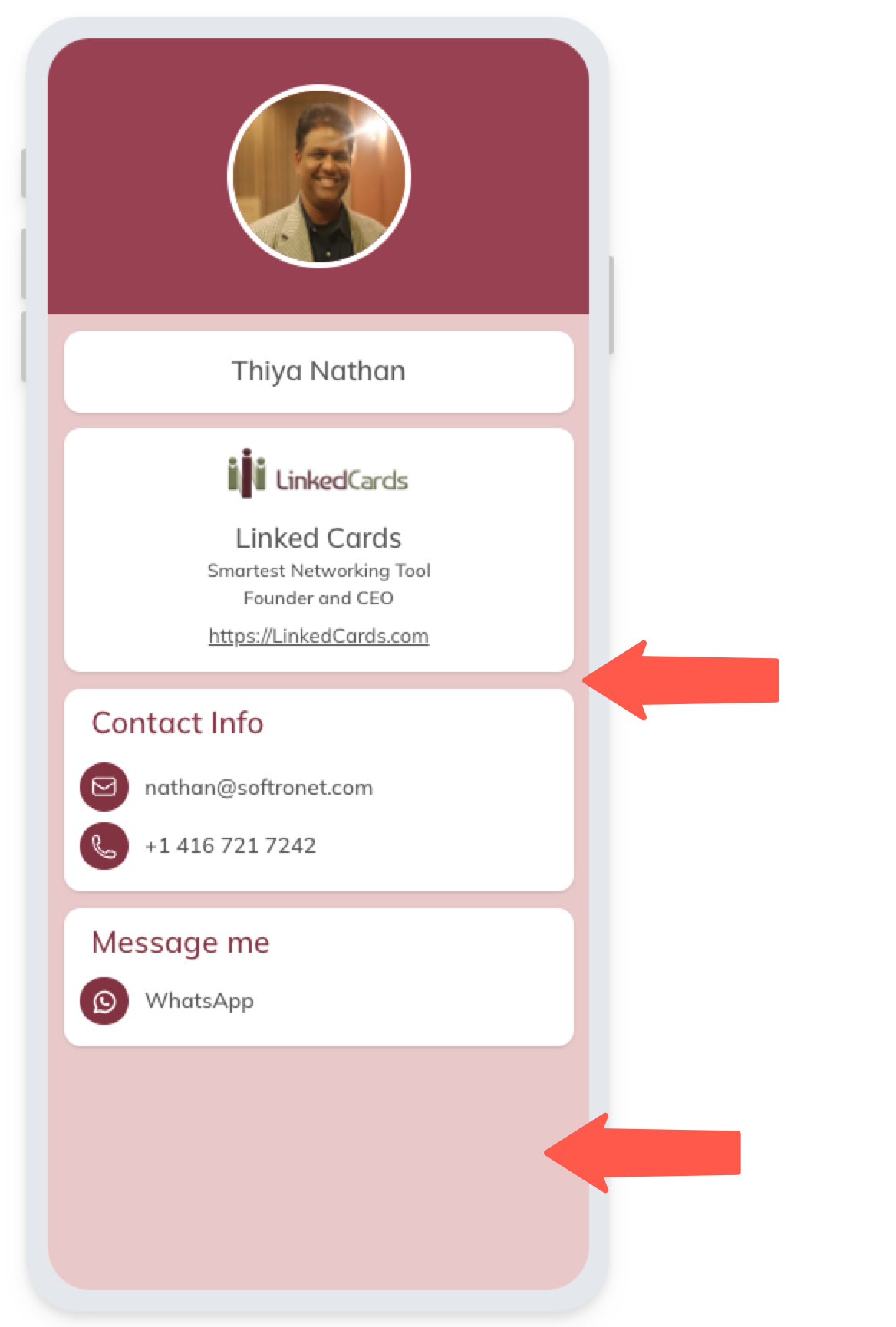
Business Card Background Image
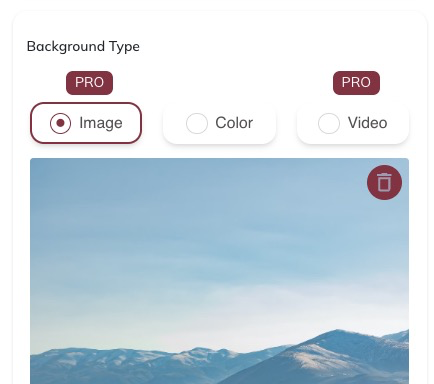
Select "Image" if you want to have an image as the background for your business card.
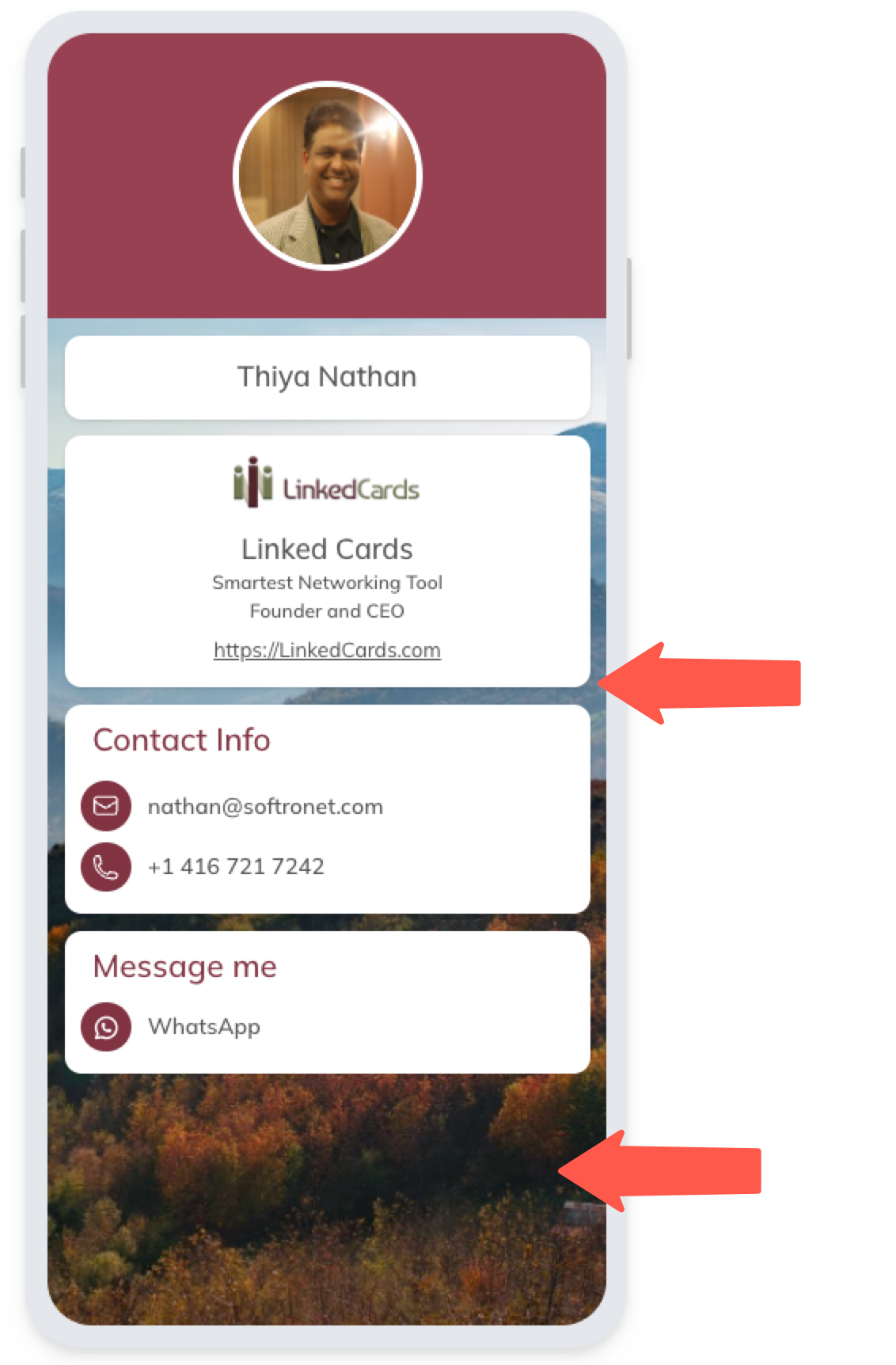
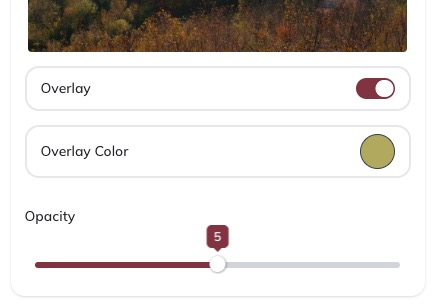
An overlay can be turned on or off on top of the background image. This will allow you to make the background image darker or give a lighting of different colors. You can experiment with this feature to make the background image and the business card look better.
When the overlay is turned on, you can choose an 'Overlay Color' and set the 'Opacity'. 'Opacity' which is transparency, allows you to apply the amount of color you want to apply and control how much of the background image you want to see through the overlay color.
Modern Theme
Modern theme is a PRO feature. You can try the modern theme when you have the "PRO-TRIAL" plan. At the end of the pro trial if your plan switches back to FREE plan, the theme will automatically switch to 'Classic' theme. Make sure to check business card design when your plan downgrades.
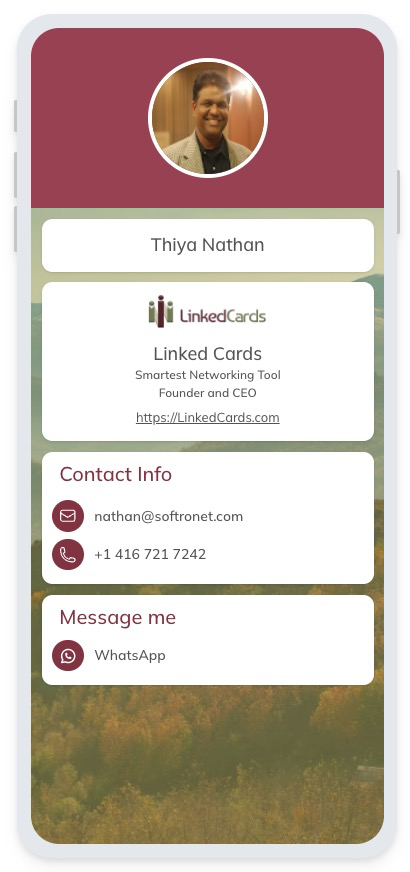
The above business card design is "Tile Based - Modern' theme.
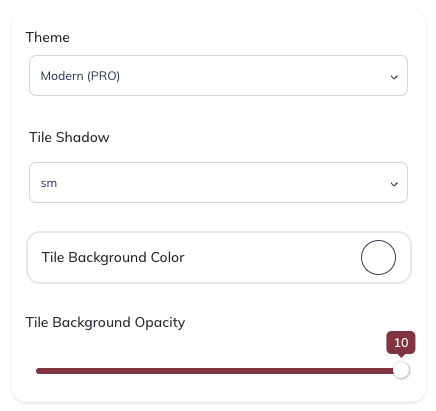
When you are using "Modern" theme, for the tiles you can change the following settings:
Tile shadow:
Tile Background Color:
Tile Background Opacity:
Classic theme
Classic theme is available as part of the FREE plan.
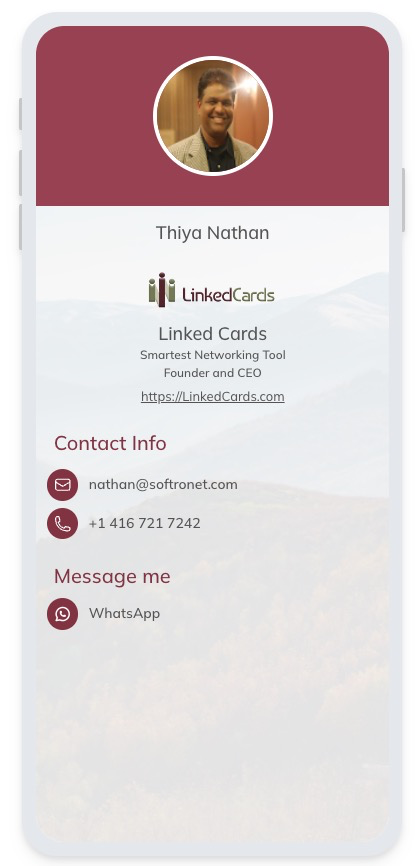
The above business card design is "Classic" theme.
Card Color Theme
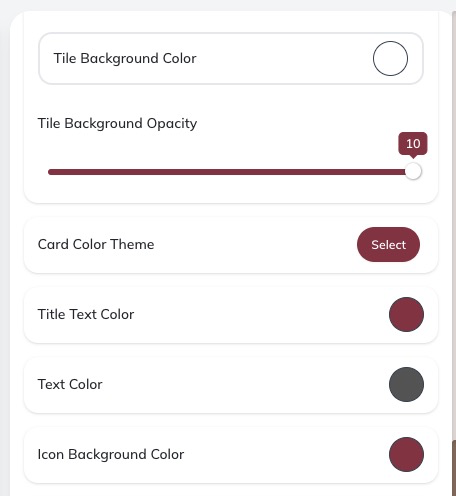
Clicking on 'Select' button will launch Color Theme options. There are many options available to choose from.
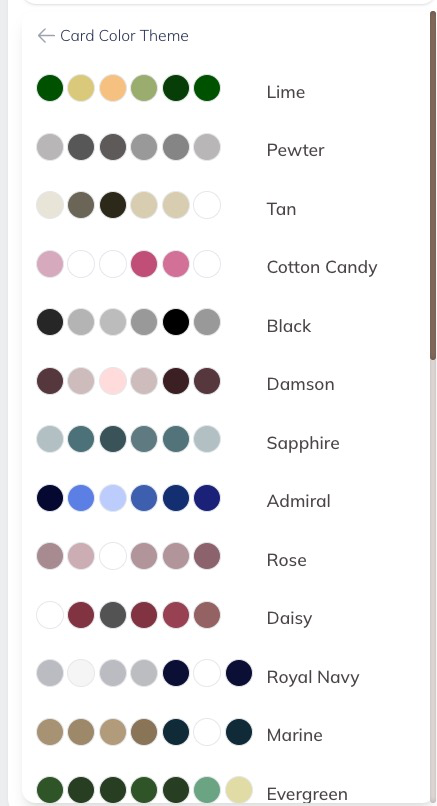
Selecting one of the above Color Theme will change colors on the business card.
Other Business Card properties
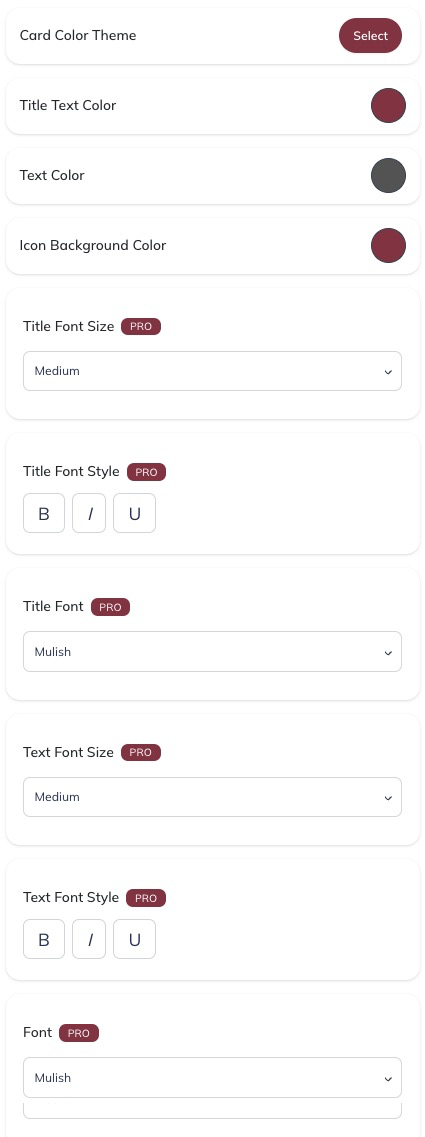
Title Text Color, Title Font Size, Title Font Style, Title Font
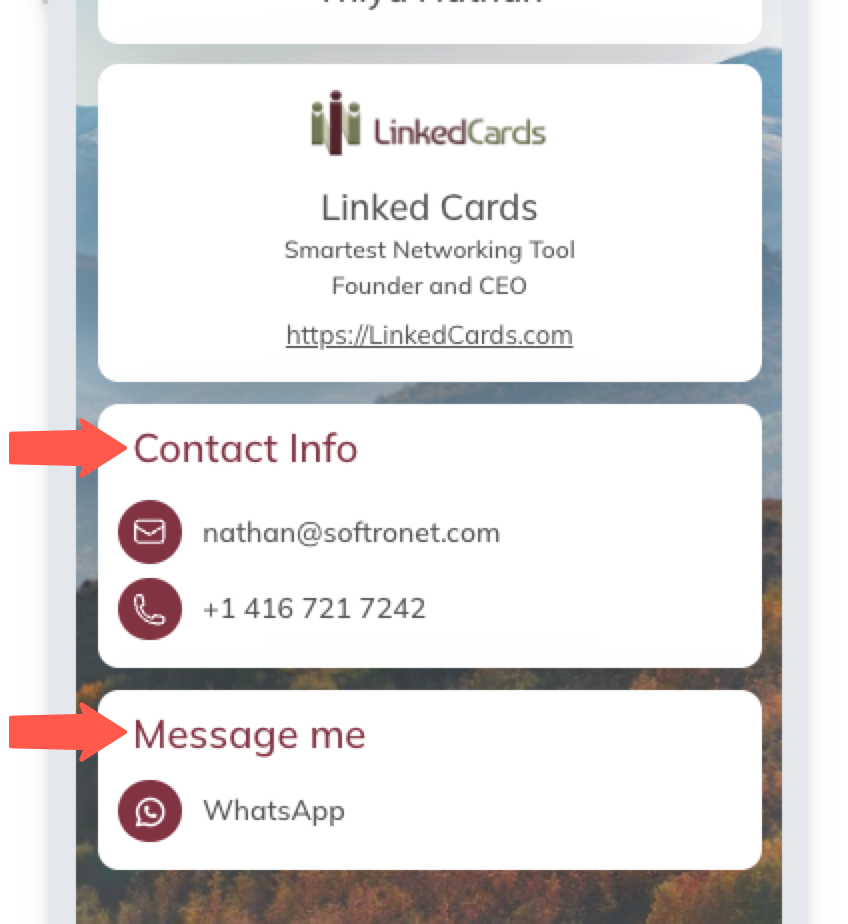
Title Text Color will change the tile's Title color.
Title Font Size will change the tile's Title size.
Title Font Style will change the tile's Title font style.
Title Font will change the tile's Title font.
Text Font Style, Text Font Size, Text Color, Font
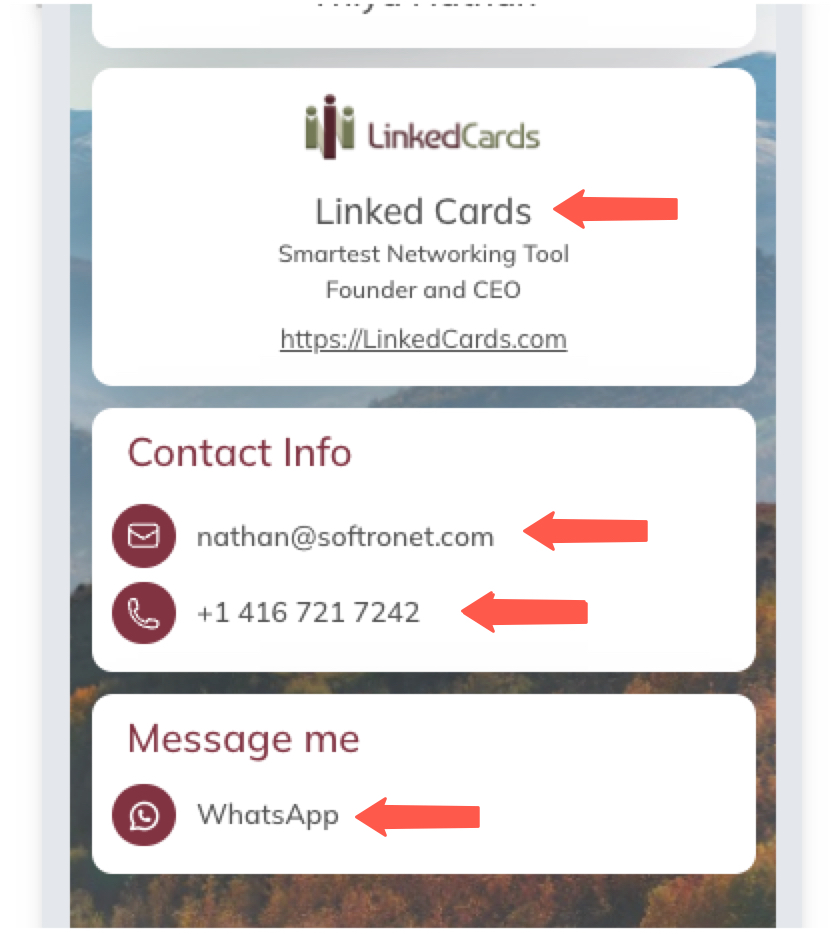
Text Color will change the tile's Text color.
Text Font Size will change the tile's Text size.
Text Font Style will change the tile's Text font style.
Text Font will change the tile's Text font.
Business Card Tiles
A business card is made up of multiple tiles. There are many different types of tiles that can be used to create elegant designs and useful functions.
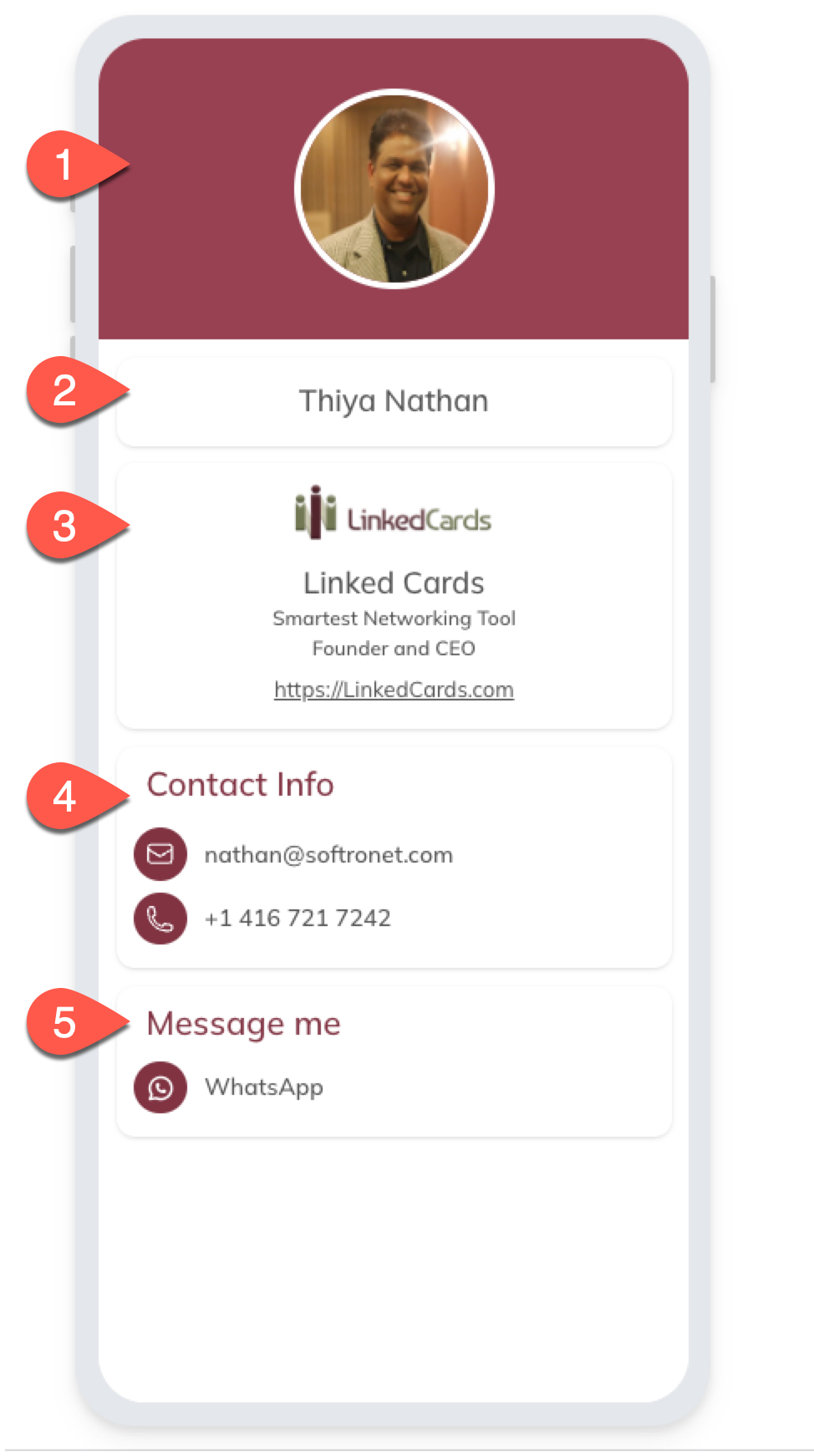
The above business card is made up of 5 different tiles.
First tile is the "Profile Image" tile.
Second tile is the "Name" tile.
Third tile is the "Company" tile.
Fourth tile is the "Contact Info" tile.
Fifth tile is the "Message Me" tile.
To learn more about various tiles and how they work, refer to each of the tile sections.
Tile Properties or Settings
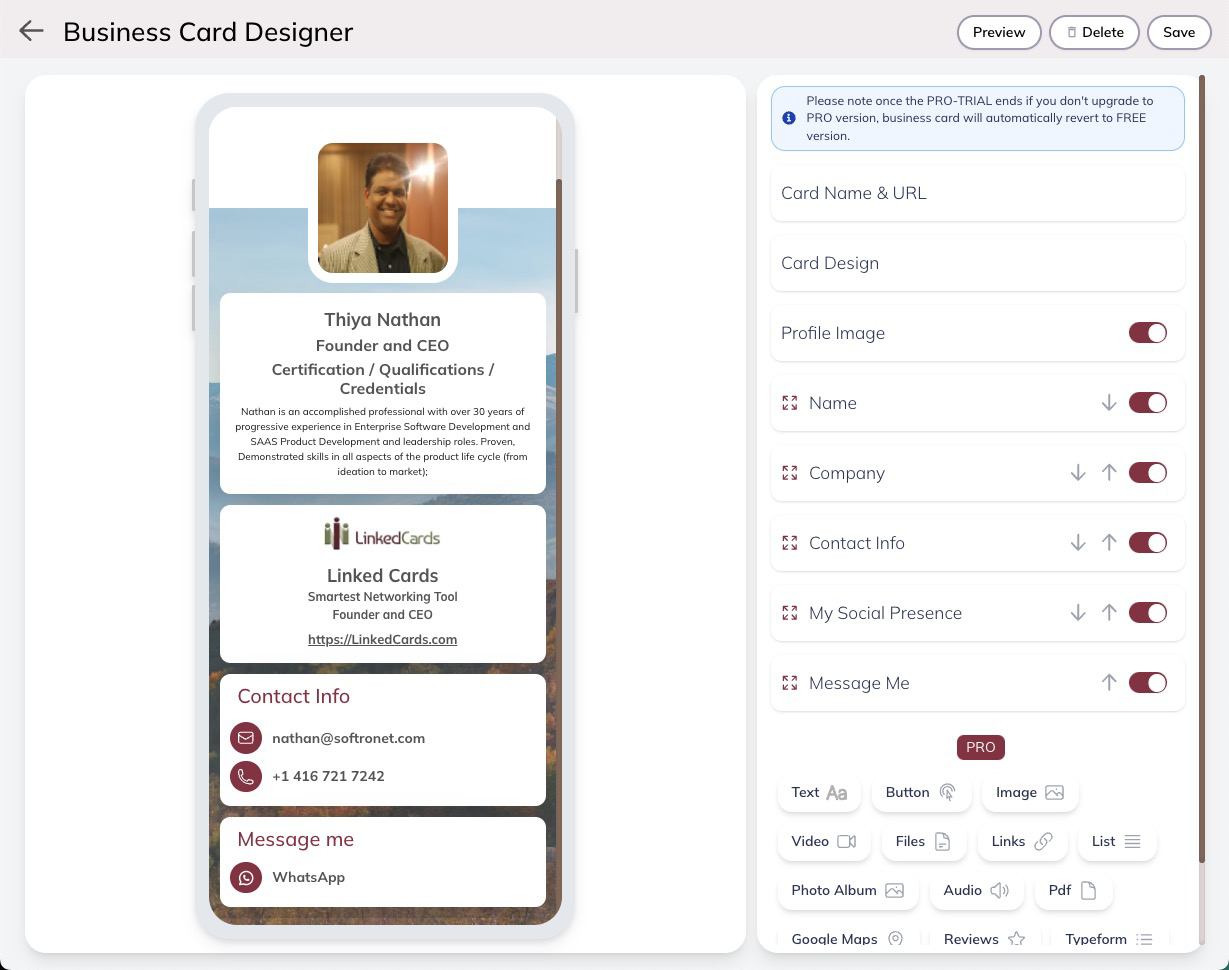
Each tile can be customized using the tiles settings panel. It also allows you to add new tiles on the business card.
Rearrange tiles
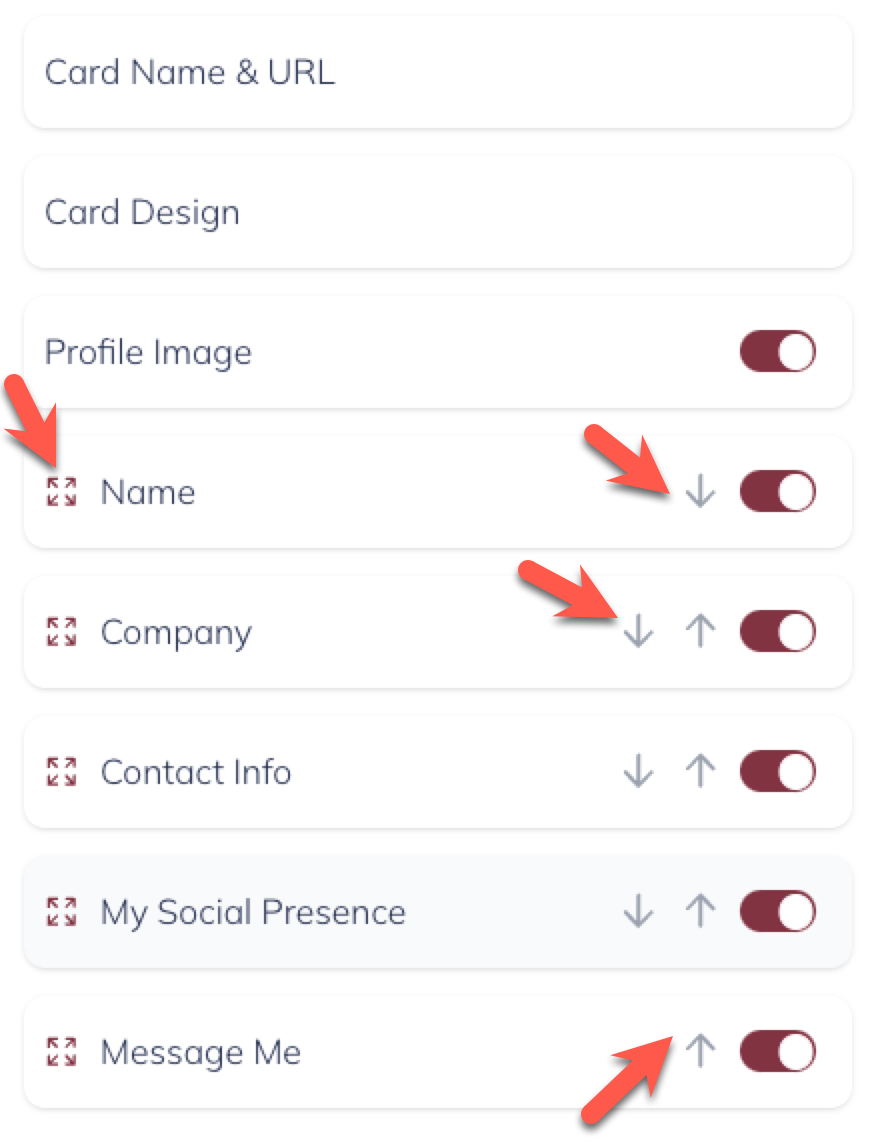
The order of the tiles on the Business Card can be rearranged by dragging and dropping the tile or moving a tile up / down using the up arrow /down arrow.
Profile Image tile has to be the first tile on the top of the business card, except for this tile all other tiles can be moved up / down.
Profile Image Tile
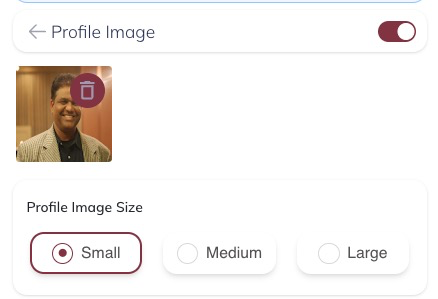
Profile Image Size controls the size of the profile image on the business card
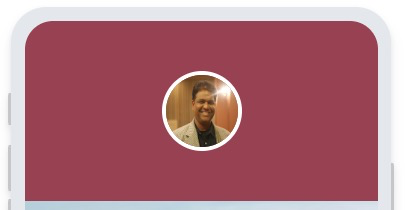
Small Profile Image

Medium Profile Image

Large Profile Image
Profile Image Border Size, Color & Opacity
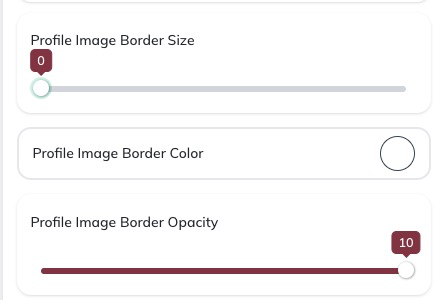
This controls the border around the profile image.
Border Color and Opacity can be used to make design better.

Size 0 will hide the border around the image.

Size 10 will be the largest border around the image.
Profile Image Corner Radius
This setting can be used to control the shape of the Profile Image.
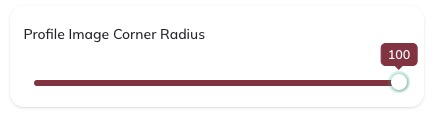

When the Corner Radius is 100, the profile image looks like a circle.
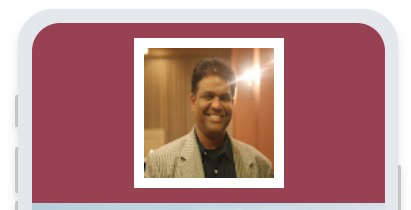
When the Corner Radius is 0, the profile image looks like a square.

When the Corner Radius is 25, the profile image corners look like rounded corners.
You can use any number between 0 to 100 to make the profile image to look the way you want.
Profile Image Position
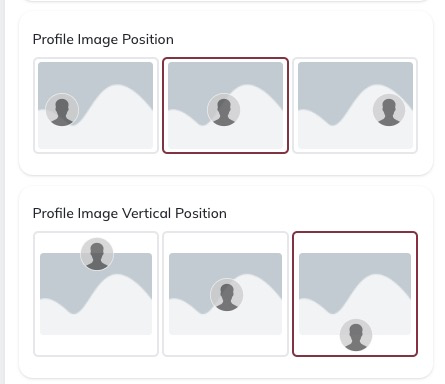
Profile Image Position and Vertical Position can be used to position the profile image where you want the profile on the business card.
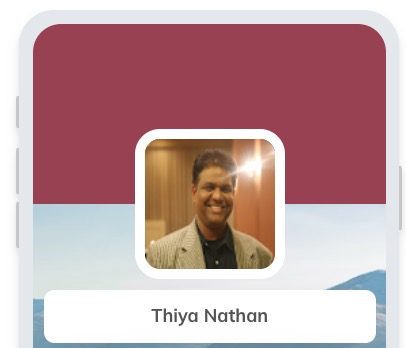
The above is position 'Middle' and Vertical Position 'Bottom'
Profile Image Background
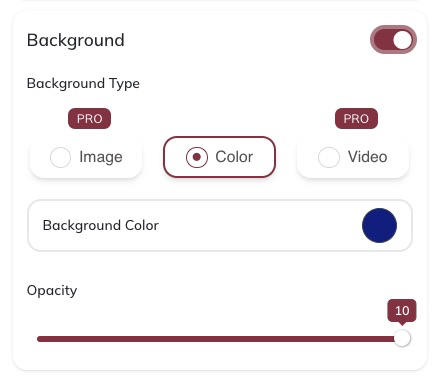
Background can be turned on/off by switching on or off using the toggle switch.
'PRO' plan members can change the profile background to be an Image or Video.
If you configured 'Image' or 'Video' background type while in "PRO-TRIAL" plan and chose not to upgrade to "PRO" plan, at the end of the trial period when plan switching to "FREE" plan, background will be automatically switched off.
Profile Image Background - Video
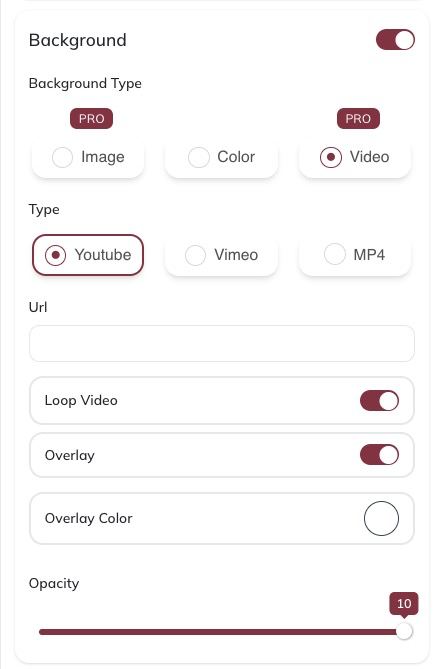
We support YouTube, Vimeo or uploading of your MP4 file.
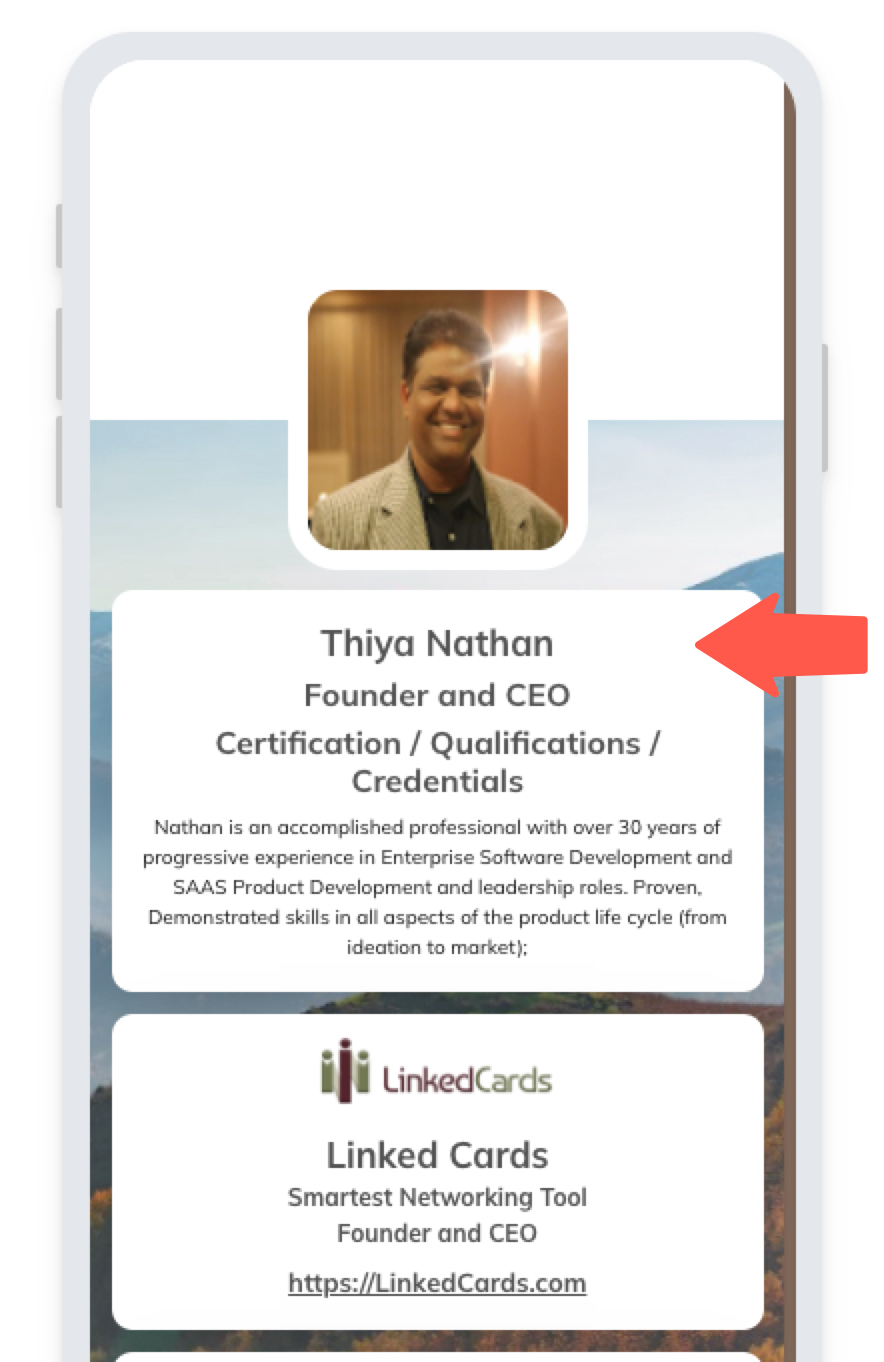
Name Tile
Name tile is what contains the person information on the business card.
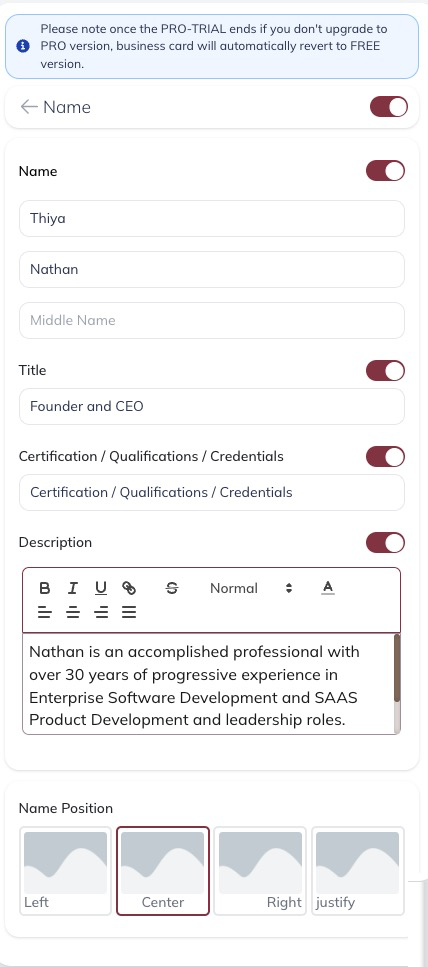
Name Tile Settings
Name tile contains the following information:
First name, Last name & Middle name
Job title - Job title is optional on this tile. Job title can also be entered in the company tile. It is your preference where you would like to list it.
Any certifications, qualifications or any credentials
Bio / Description - this is where you can add a short bio or description that would like to add.
Name Position can be used to position the text left aligned, center aligned, right aligned or justified.
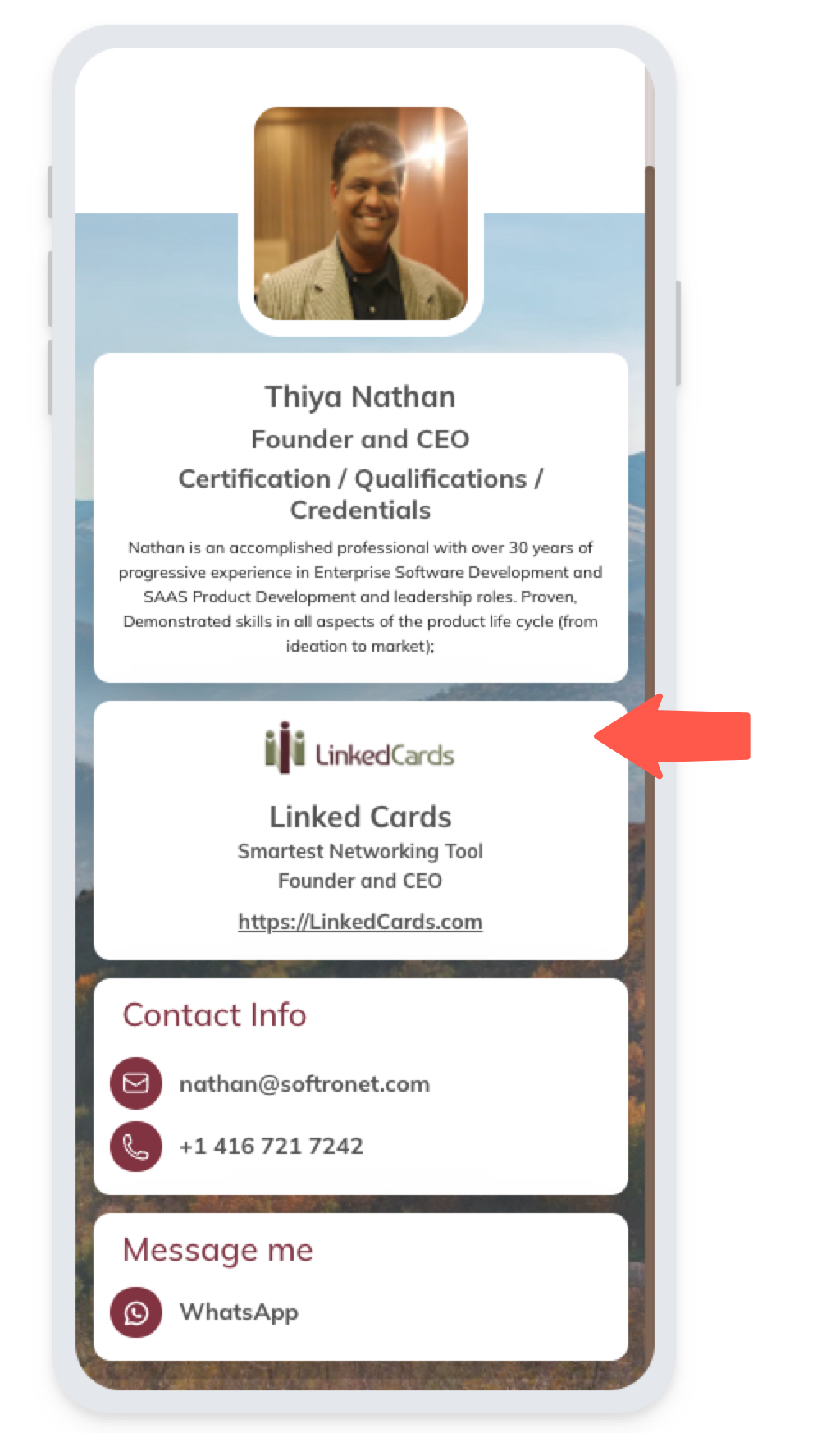
Company Tile
Company Tile Settings
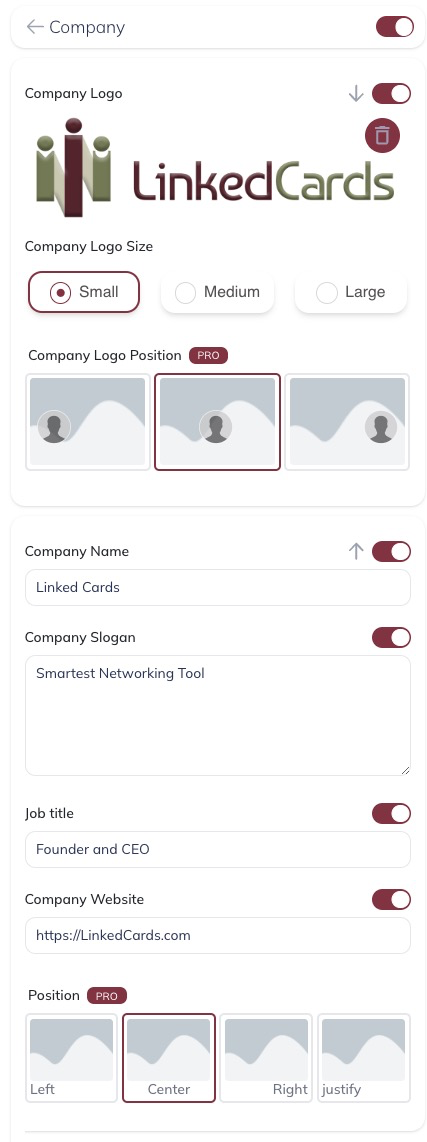
Company tile has the following settings:
Company Logo - Upload a high resolution photo so that the image looks better
Company Logo size - Size of the Logo
Company Logo Position - Logo position can be changed between Left, Center or Right aligned
Company Name - Name of the company
Company Slogan - A short line to describe the company's mission or vision. Don't make this too long.
Job Title - If you have used the job title on the name tile, turn this off.
Company Website - enter your company website
Position - This controls the text alignment position. It can be changed between Left, Center or Right aligned
Contact Info Tile
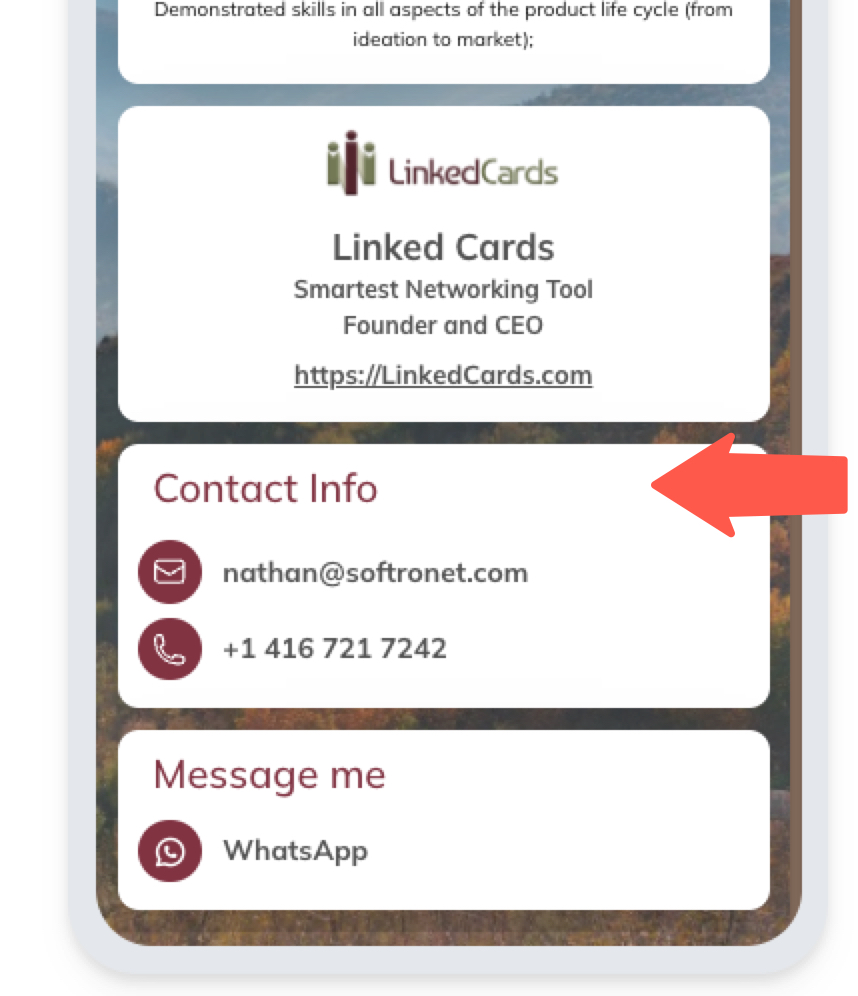
Contact Info Settings
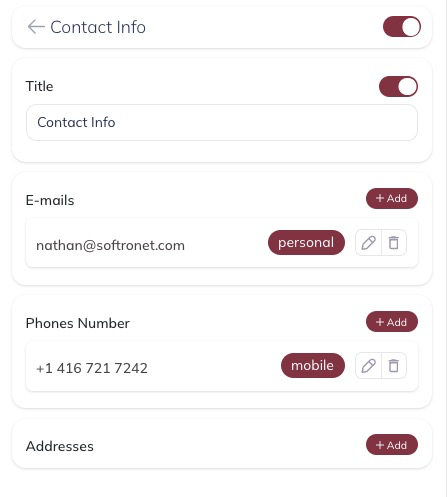
Contact Info Settings allows you to add your contact information on the business card.
As part of the FREE plan you can add one email address, one phone number and one address.
You will need have PRO plan to have more than one information per item
If you like the title of this tile can be changed or turned off.
My Social Presence Tile
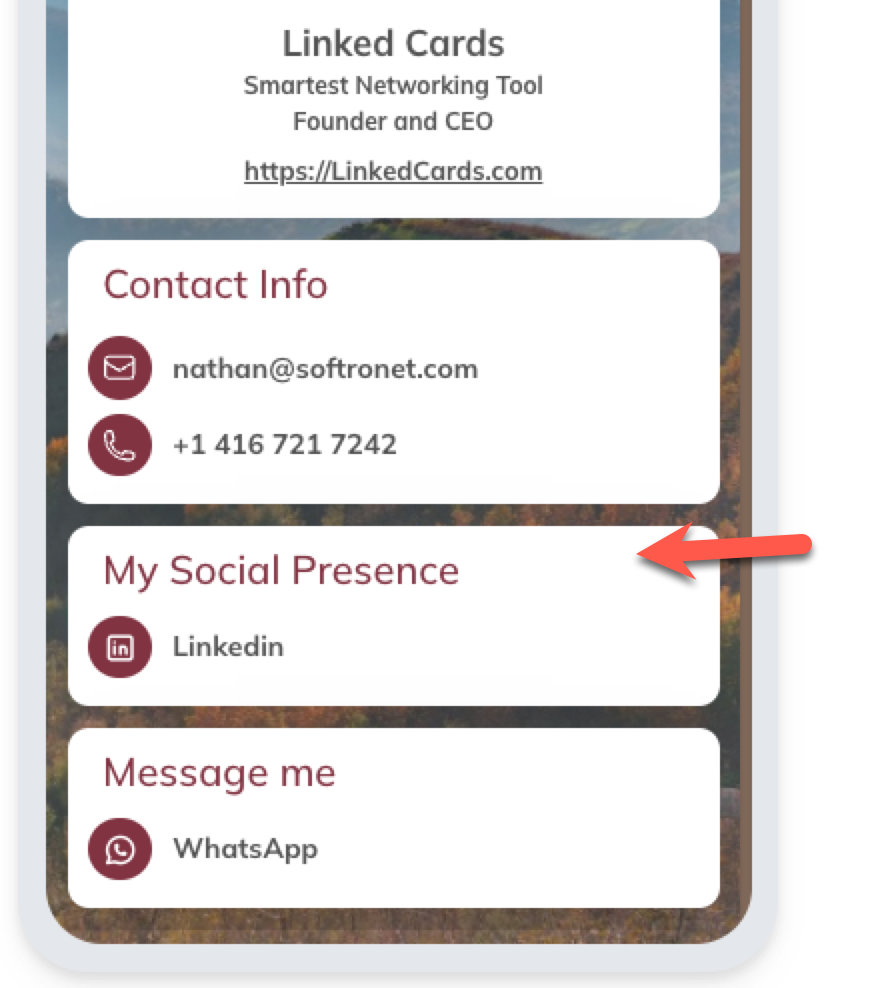
My Social Presence tile settings
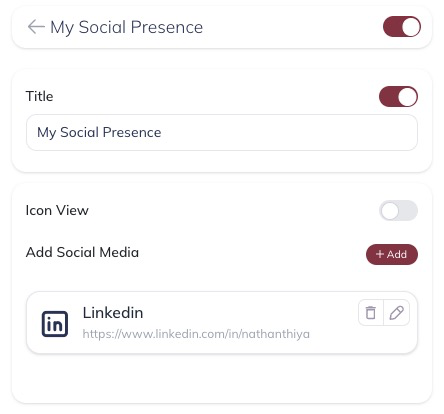
You can add as many social presence as you want in PRO plan.
You can add maximum of 2 social network links as part of FREE plan.
Add Social Media link
Click on the '+Add' button to add a new social network link
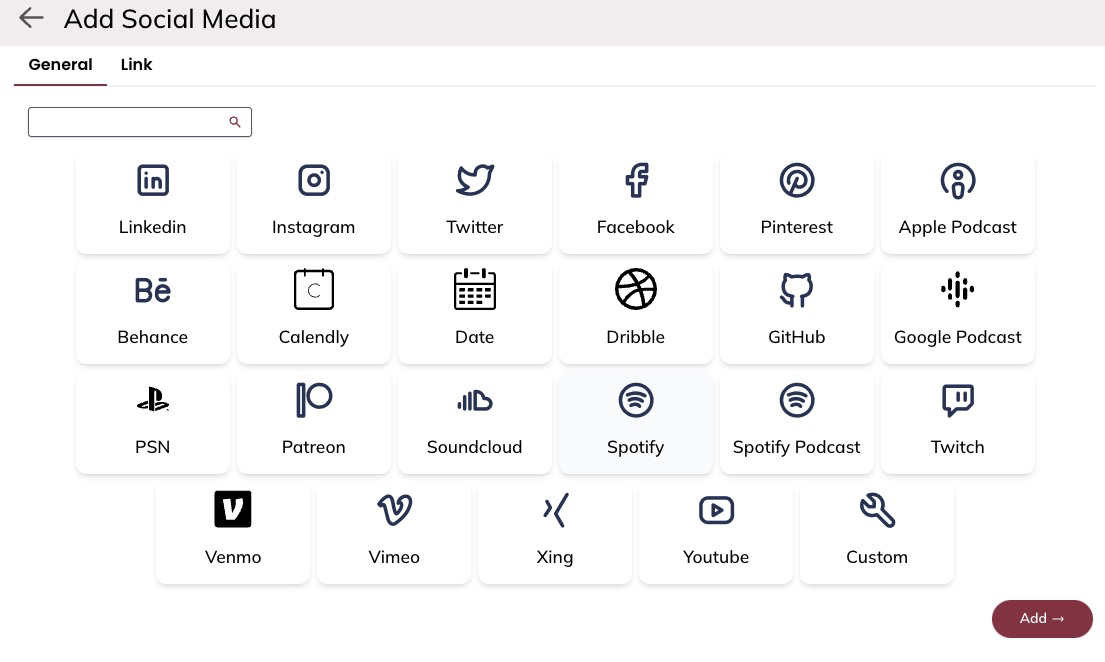
Select a Social Media that you want to add to your business card. If you don't find your social media for any reason, click on the icon "Custom" to add any social media that is not listed on the above screen.
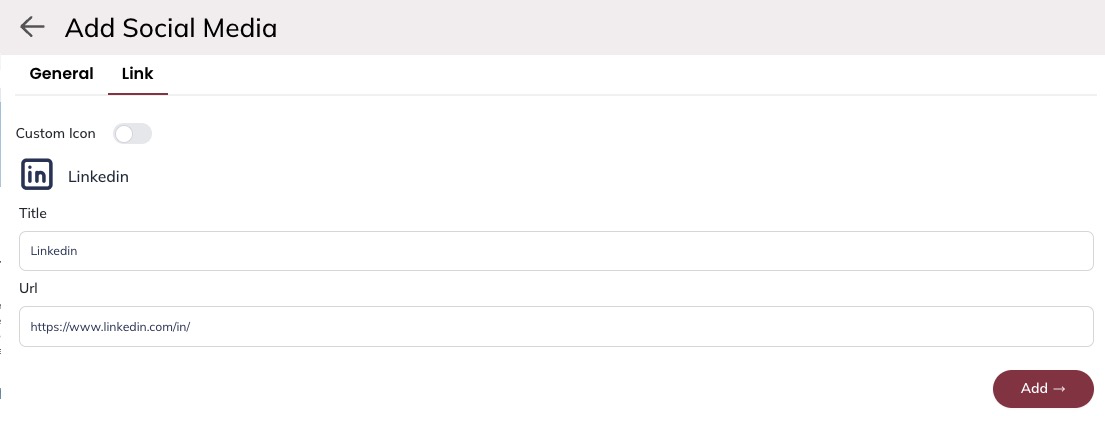
Once you select a Social Media, you will be taken to the next screen to provide your social media profile URL.
Enter your social media's full profile URL. This will be URL on your browser address bar when you're looking at your profile in the selected social media.
Icon View
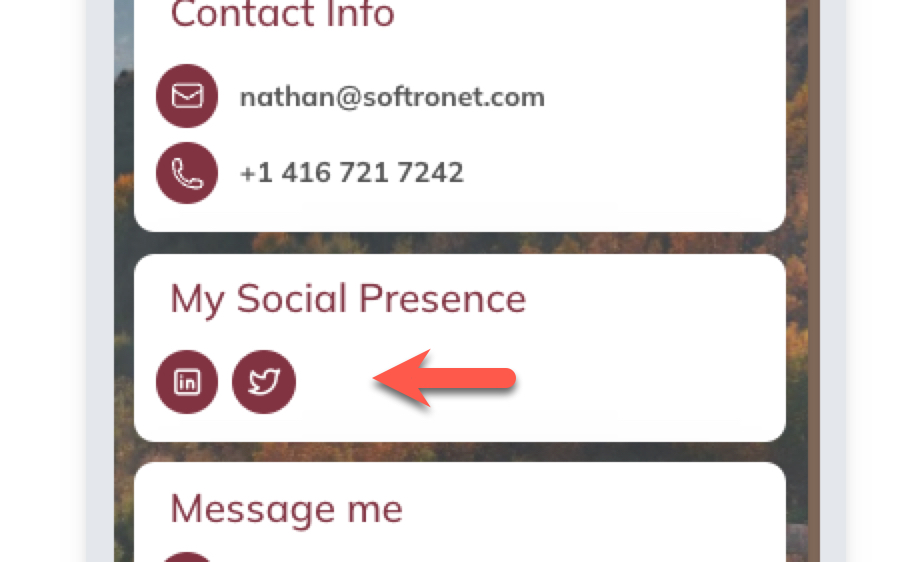
Icon View will display icons for each of your social media
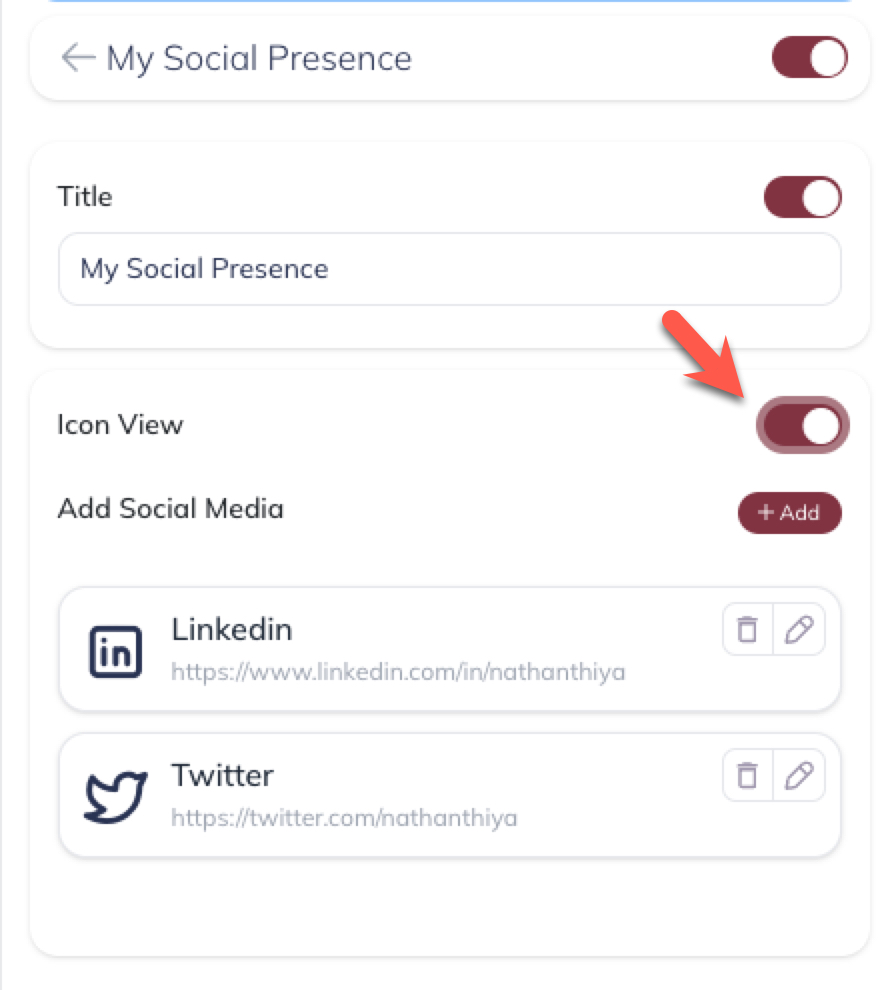
Icon view can be turned on, off using the slider.
Custom Social Media Icon
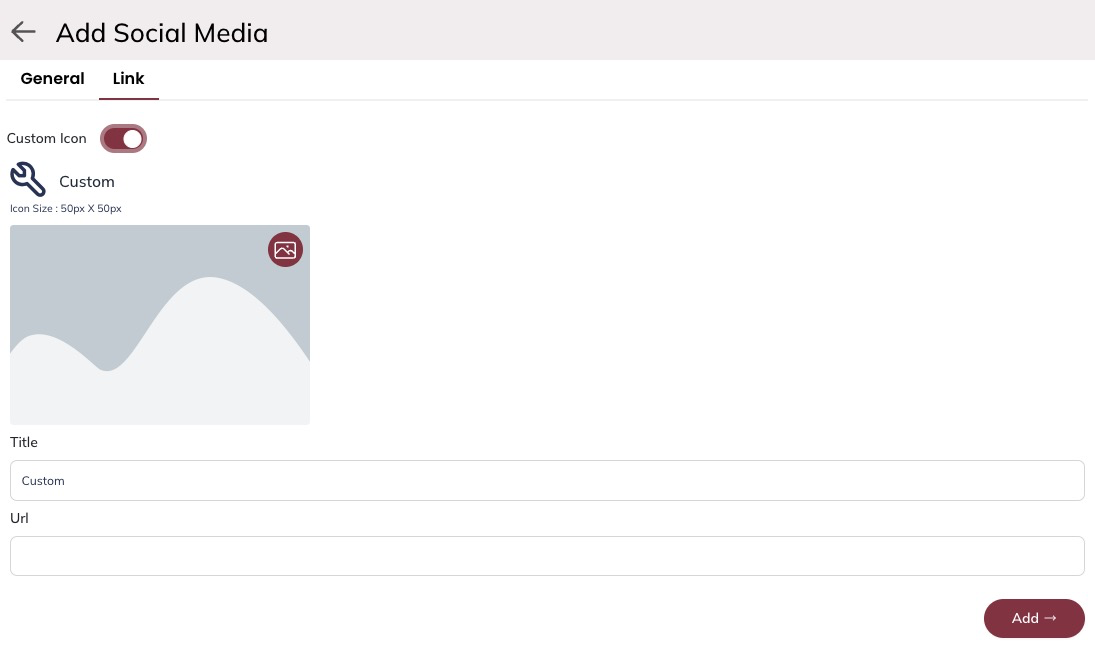
For any reasons if you would like to change the icon of a particular social media, you could do that by clicking on the switch to turn on "Custom Icon"
Upload an image that you would like to use.
Message Me Tile
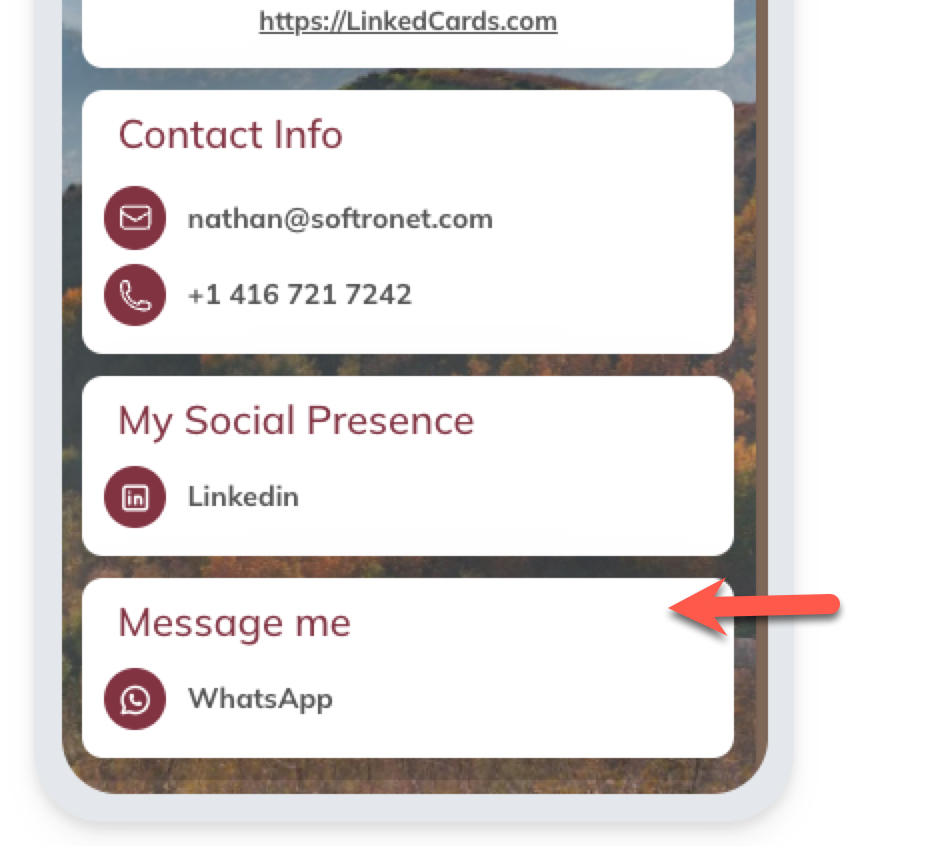
Text Tile
Note: This tile is a PRO feature. This is only available when you're subscribed to PRO plan. You can try during PRO-TRIAL, if you don't upgrade at the end of the PRO-TRIAL period, this tile will be removed from the business card at the end of the trial period.
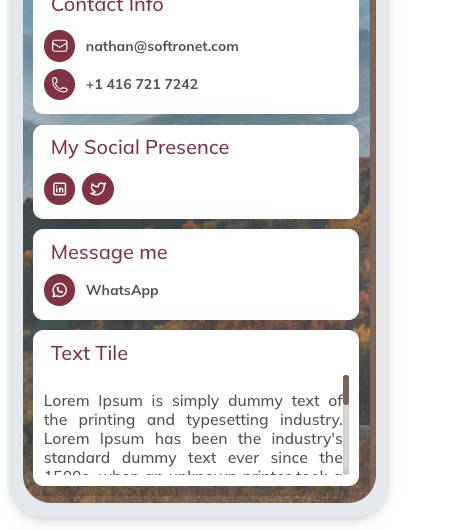
Text Tile Settings
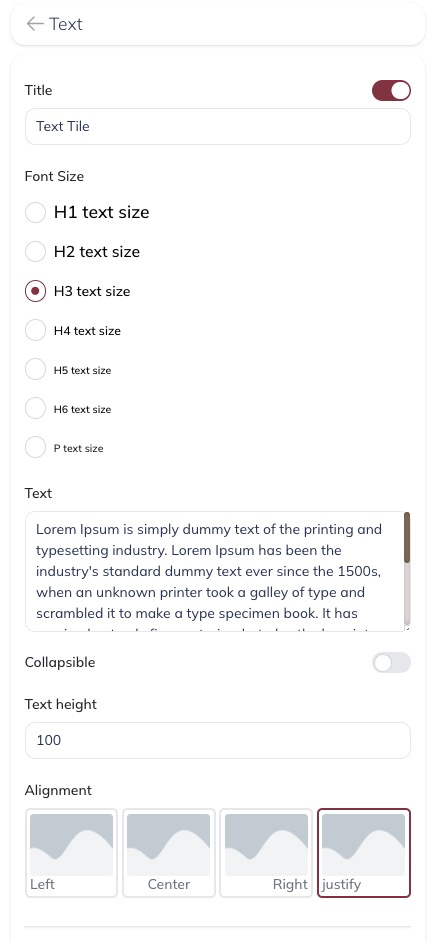
Title - Tile title can be changed
The text body size can be changed.
The text of the tile
Collapsible - this decides whether the tile should collapsible and take very little area within the business card
Text height - This controls the height of the text displayed area. This is specified in Pixels. If the text is very long, this height can be used to make the tile smaller with a scroll bar. Users can scroll the text and read the content.
Alignment - This setting controls the alignment of the body text.
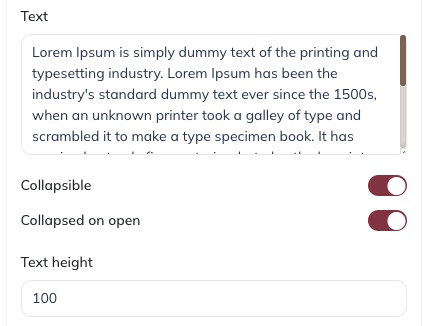
If the Collapsible is enabled, another setting will become available called 'Collapsed on Open'. This setting can be used to keep the tile collapsed when the business card is displayed. If the end user wanted, they can open and see the text information.
Call To Action (CTA) Button Tile
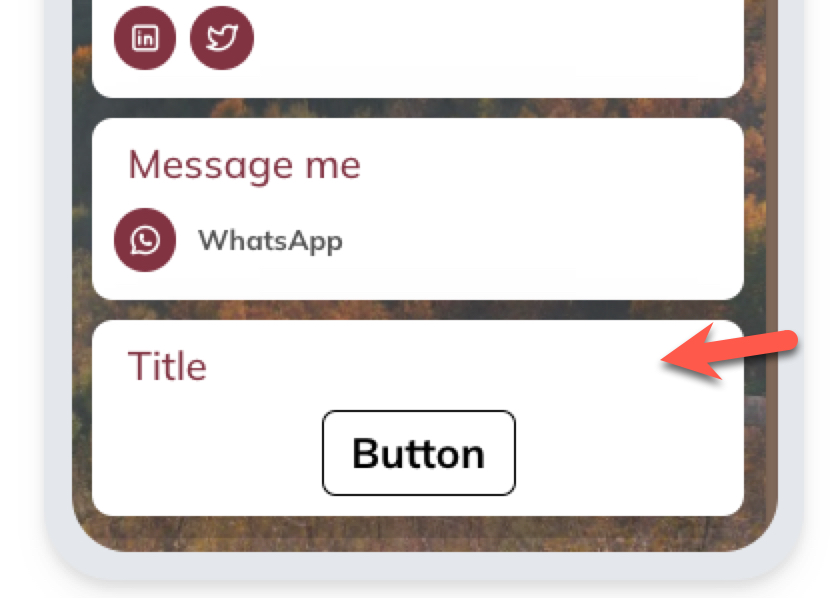
As part of the business card, you can add a CTA button. This button can be used to suggest business card viewers to take an action.
3 most important settings of this tile are:
Title - Name of the title
Button name - What the CTA button name
URL - The full URL where the user should be taken to, if the button was clicked by the viewer. The URL is must, otherwise the CTA button will not be able to do anything useful.
CTA Button Tile Settings
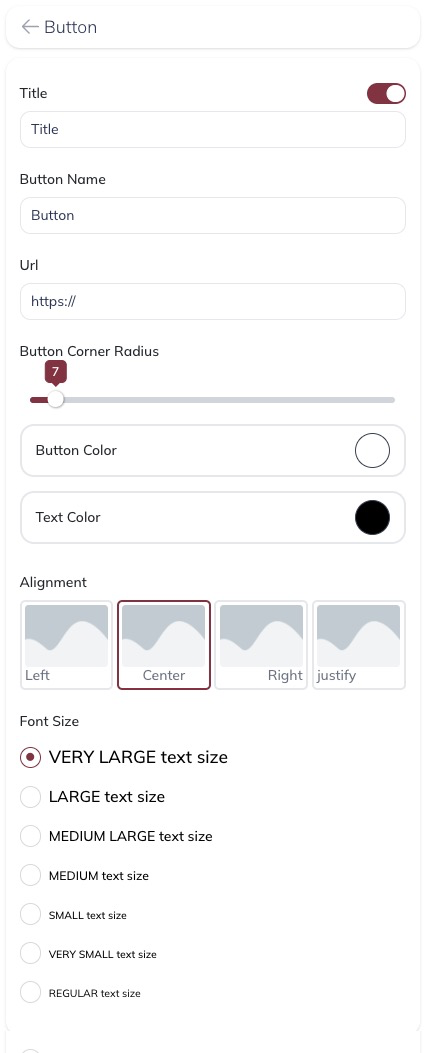
Other settings can be used to control the look and feel of Button tile.
Image Tile
Image tiles can be used to display an image on a business card. Also optionally the viewer can be taken to the URL, if the user clicks on the image.
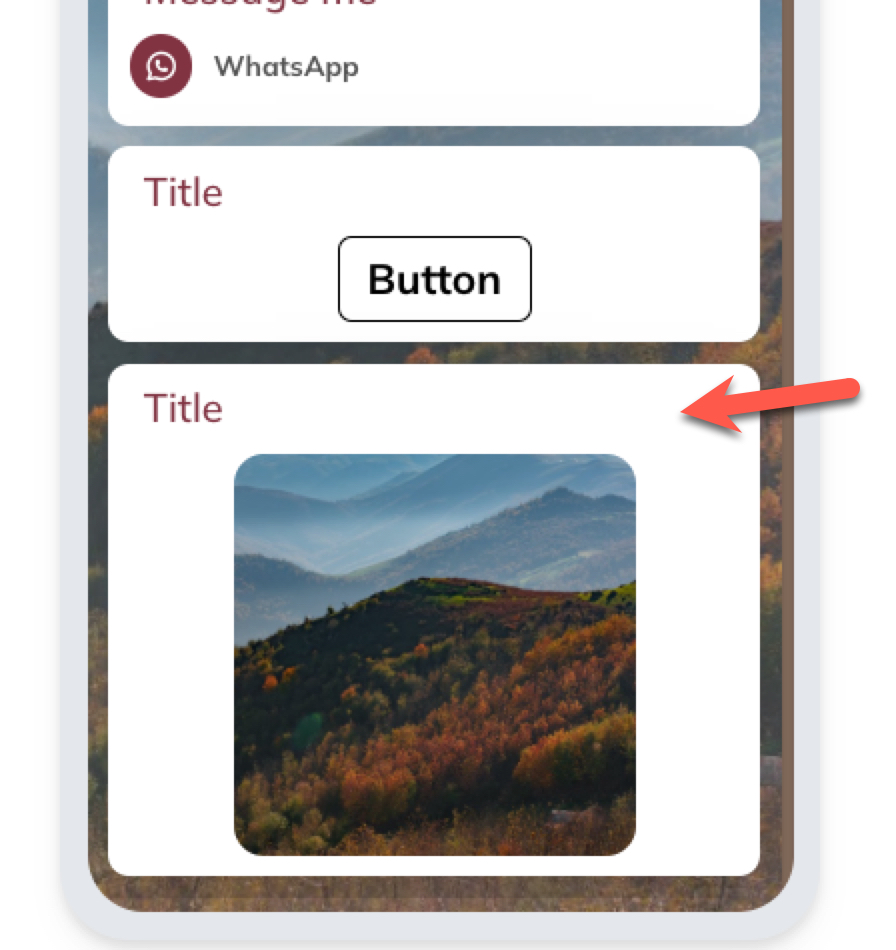
Image Tile Settings
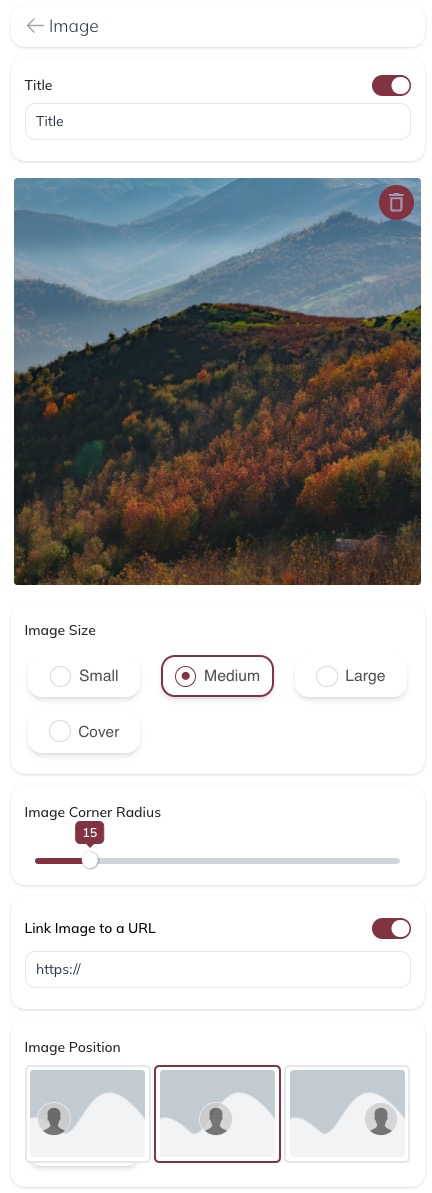
Using the settings one image can be displayed.
Image size
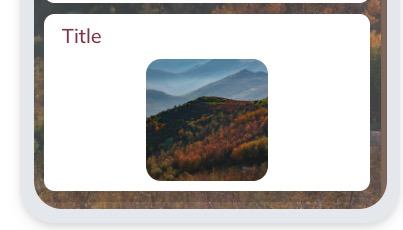
Small Image size
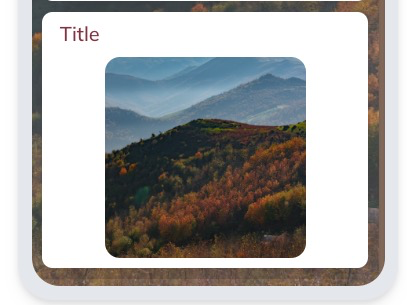
Medium Image Size
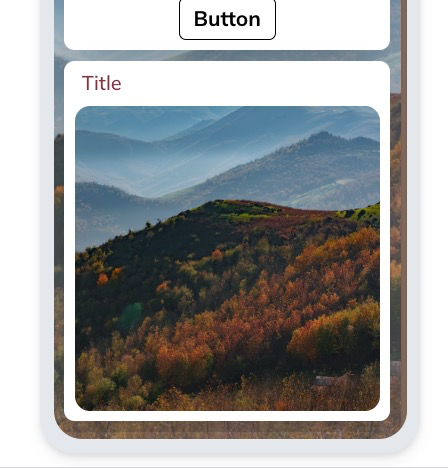
Large Image Size
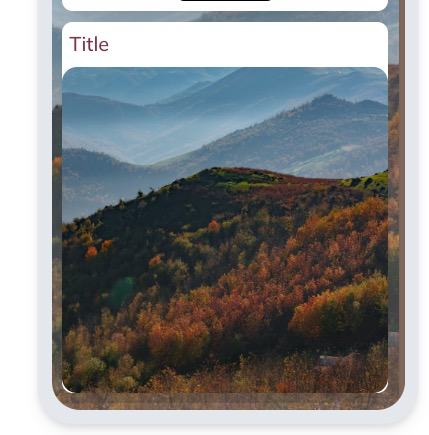
Cover Image Size
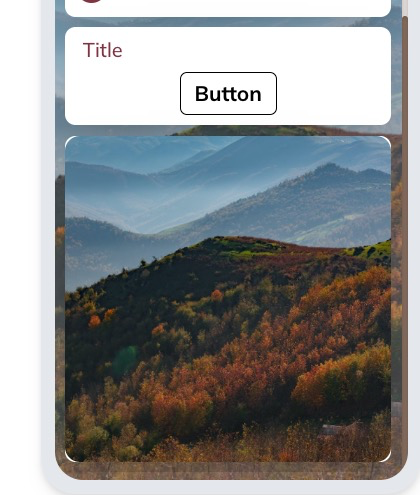
Cover Image Size with Title turned off.
Video Tile
Video tile can be used to embed a video on the business card.
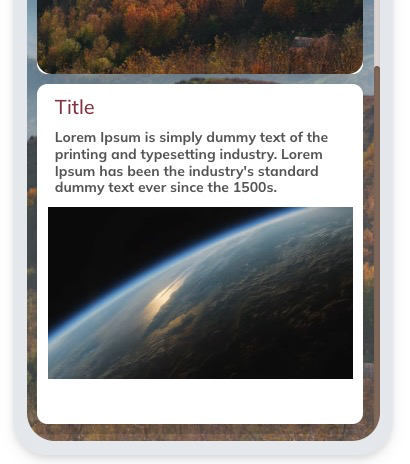
Video Tile Settings
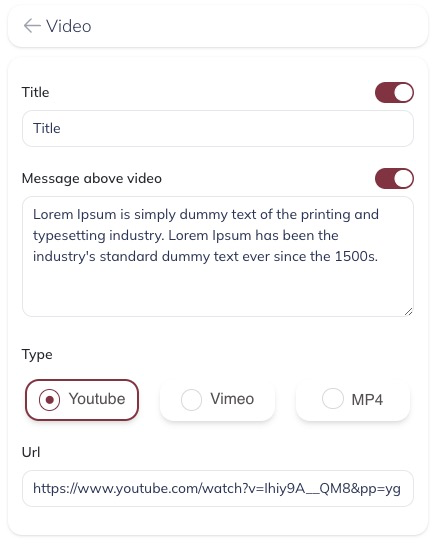
Title - Tile title. This title can be turned off.
Message above video - A message or a description can be added for each of the video.
Type of Video - The video tile's video can be powered by YouTube, Vimeo or MP4.
When you use MP4, you can upload a video. Maximum size of MP4 file size is 25MB.
Files Tile
Files Tile can be used to attach various files to your business card.
This can be used to give Brochures, manuals, flyers and many other files to your business card viewers.
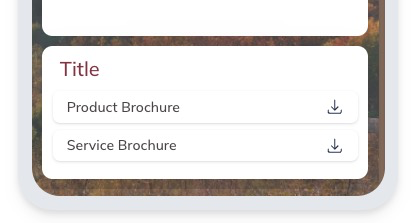
Files Tile Settings
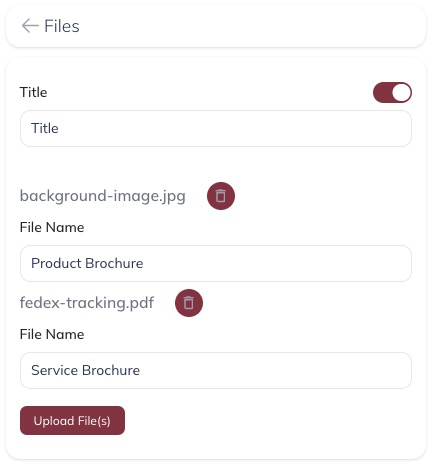
Click on the "Upload File(s)" button to upload files.
Links Tile
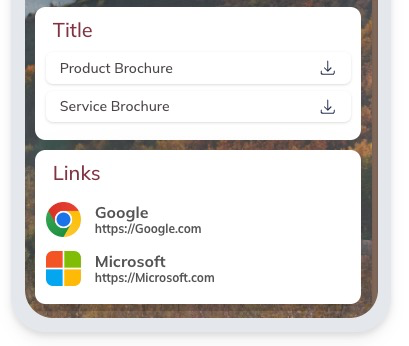
List view of the links
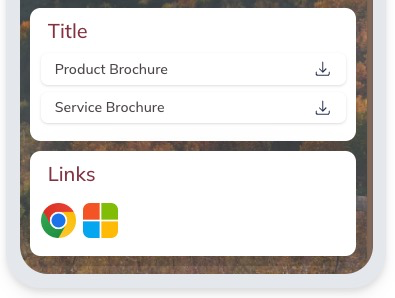
Icon View of the links
Links Tile Settings
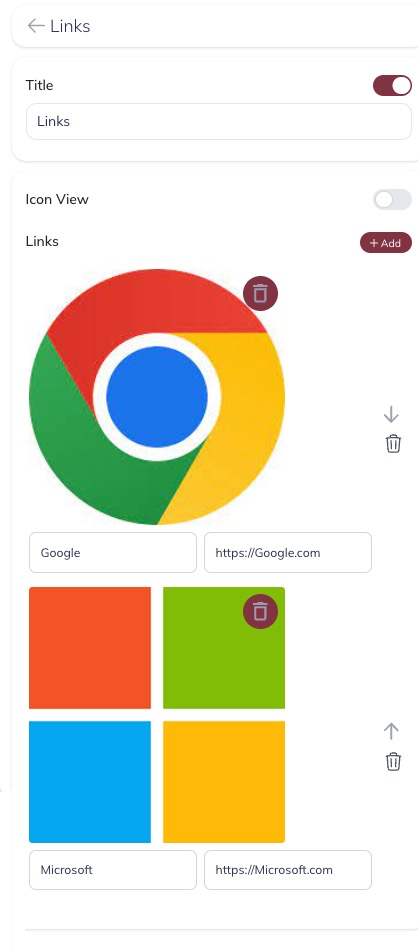
Use '+ Add' button to add a link
For each link:
- you can upload an image as icon
- you can give a name for the link
- you have to provide the link where viewer should be taken to when user clicks
List Tile
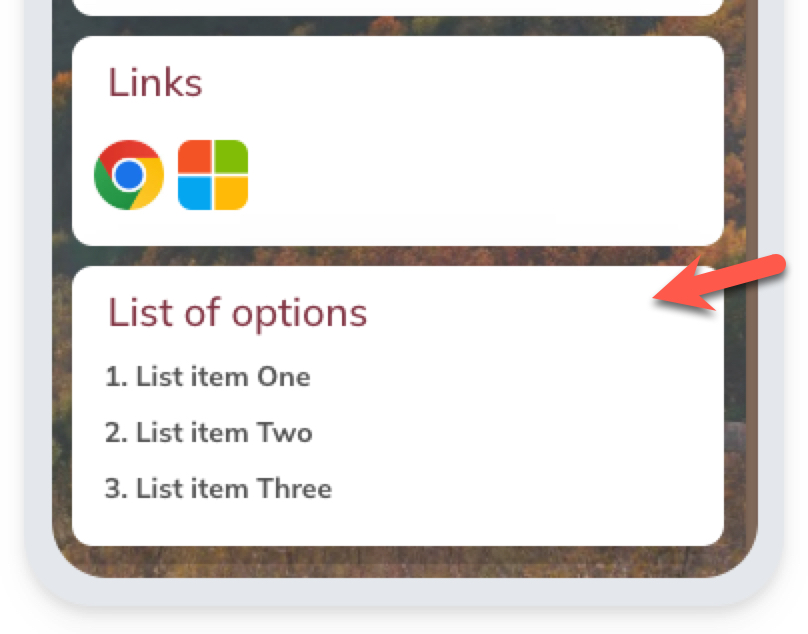
List tile allows you to create a tile with a list of items. You could use different list styles to display the list in different ways.
List Tile Settings
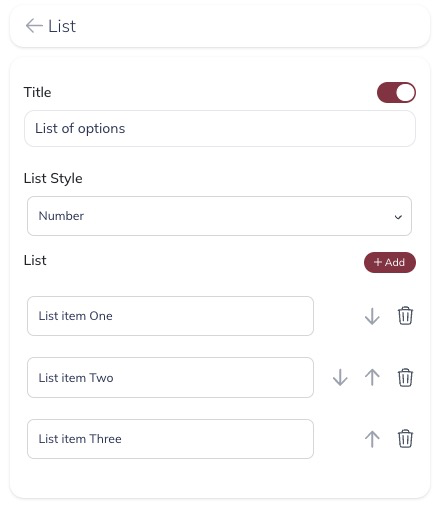
Use "+ Add" button the add items to the list
List Style - can be None, Number, Circle, Bullet, Roman, Alpha
Various List Style options
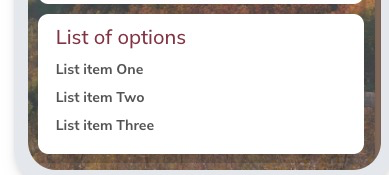
List Style - None
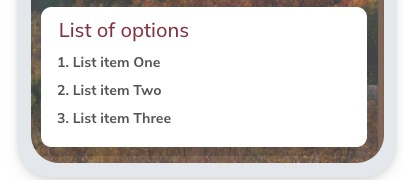
List Style - Number
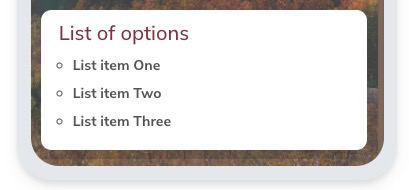
List Style - Circle
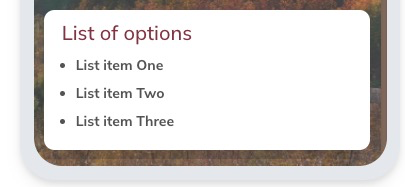
List Style - Bullet
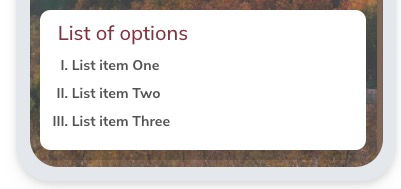
List Style - Roman
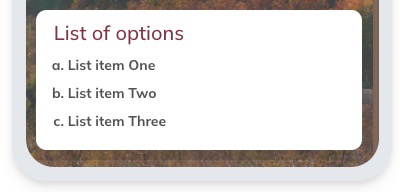
List Style - Alpha
Photo Album Tile
Photo Album tile allows you to upload photos. This tile can be used make portfolios and
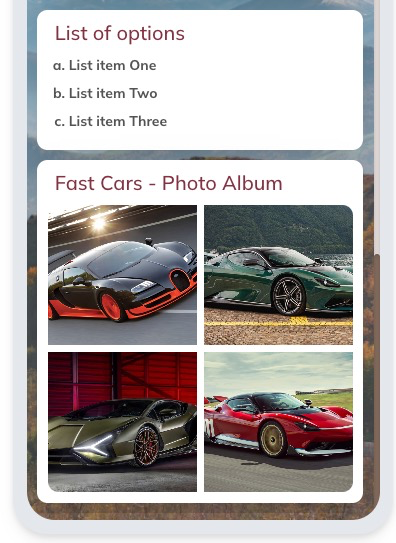
Photo Album Tile Settings
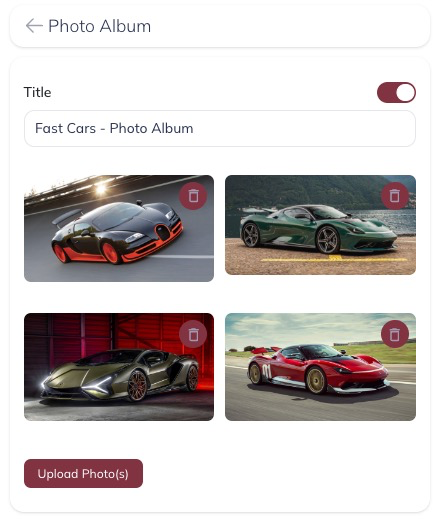
"Upload Photo(s)" button to upload images to photo album.
Audio Tile
Audio Tile can be used to play an MP3 file or WAV file
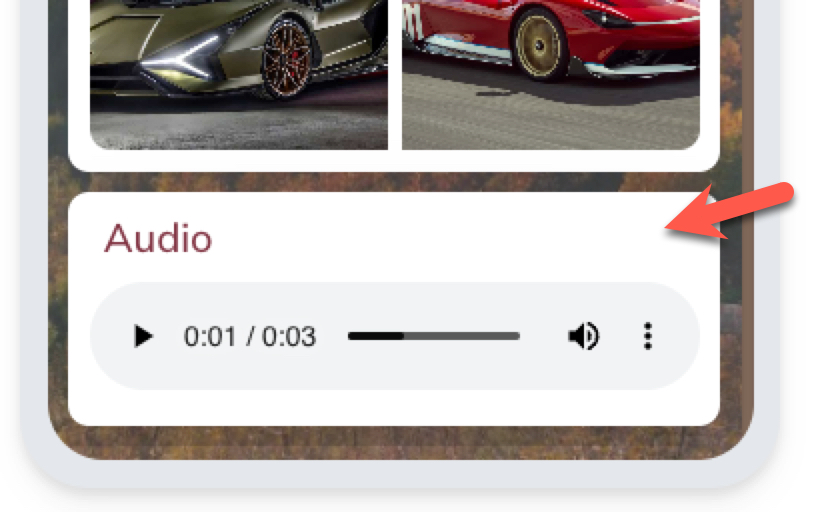
Audio Tile Settings
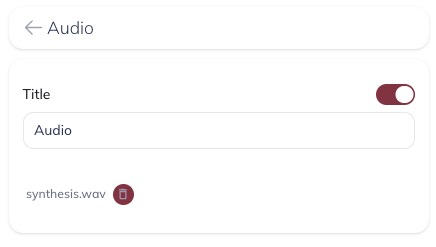
Upload the WAV or MP3 file
PDF Tile
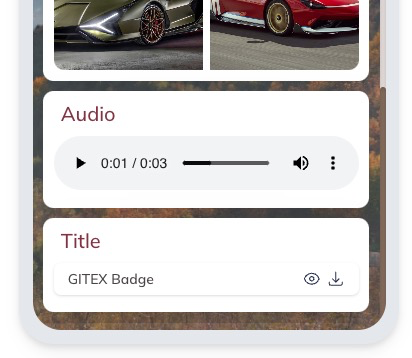
PDF Tile allows users to add one or more PDF files to the business card. Card viewer can preview or download the PDF file.
PDF Tile Settings
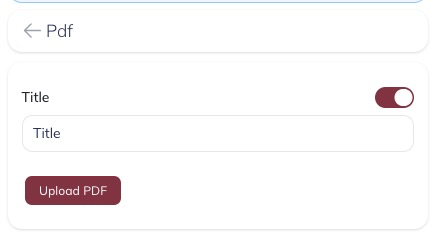
Upload the PDF file that you would like to show on your business card.
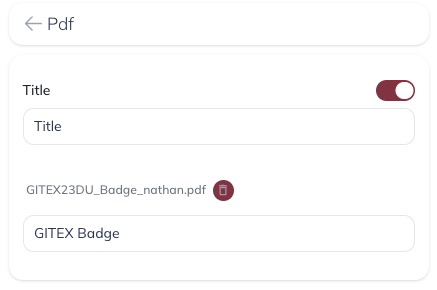
Once a file is uploaded, file name can be changed to give a proper name.
Google Maps tile
Good Maps Tile can be used to display an address. Also a 'Direction' button can be used to allow a business card viewer to route to your location directly from your business card.
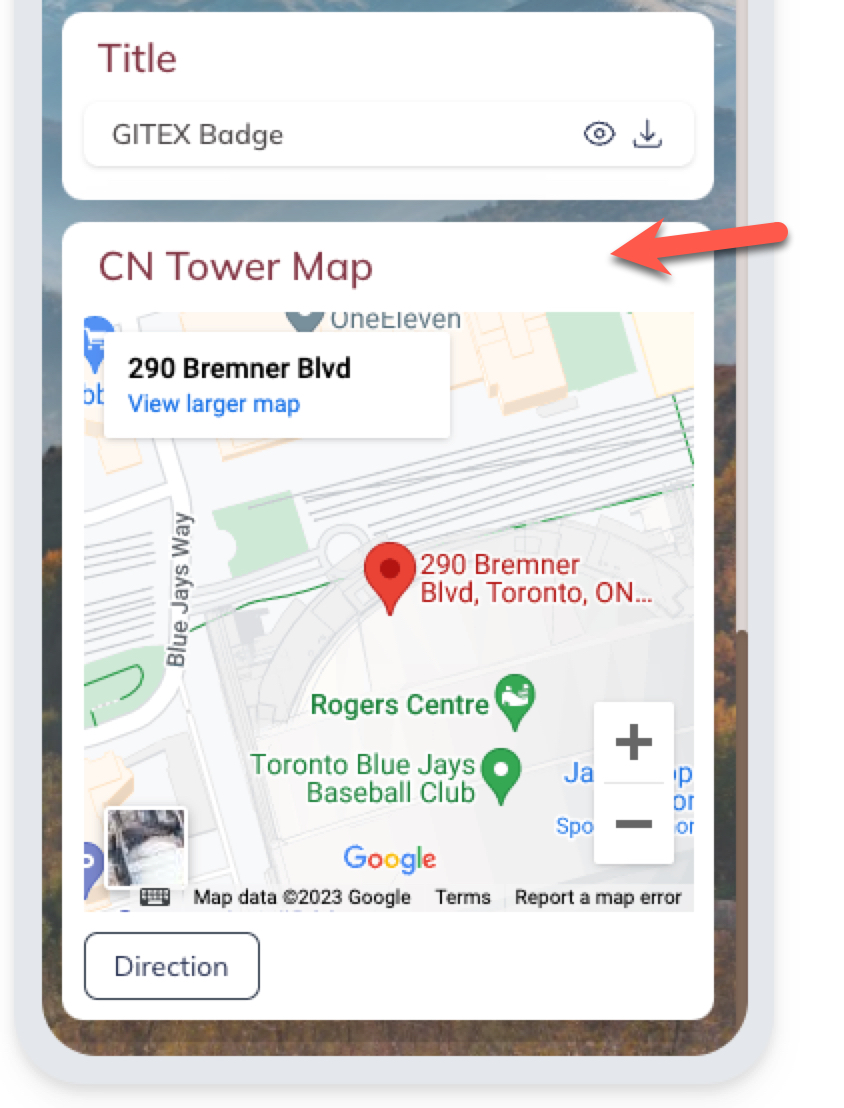
Google Maps Tile Settings
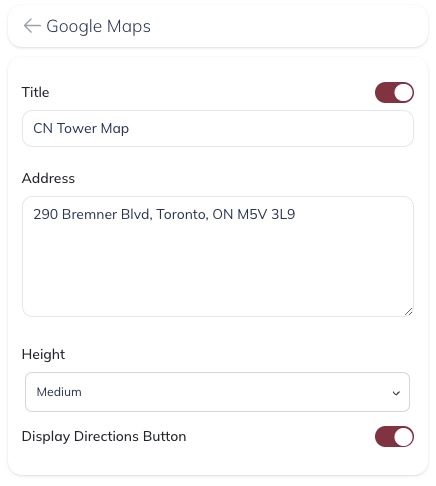
Title - Tile Title can be changed
Address - Type your full address to display the location of your address on Google Maps
Height - This can be used to control the height of maps tile.
Display Directions Button - If you would like your viewers to route to your location, use this.
Reviews Tile
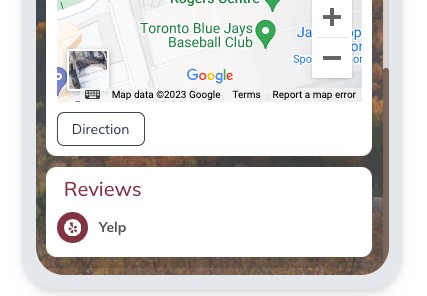
Reviews tile allows you to link to various reviews sites for your business. This tile can be used to display your business's reviews to viewer. Also you could ask your viewer to write a review about your business.
Reviews Tile Settings
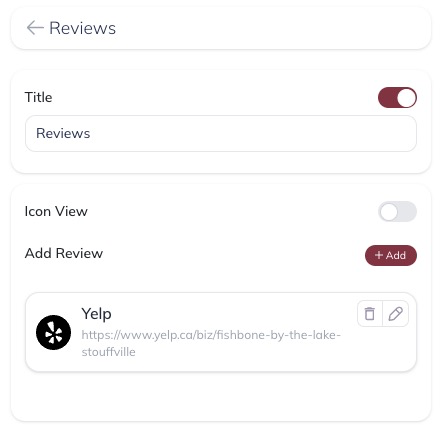
Using 'Icon View' you can display the review sites as just icon
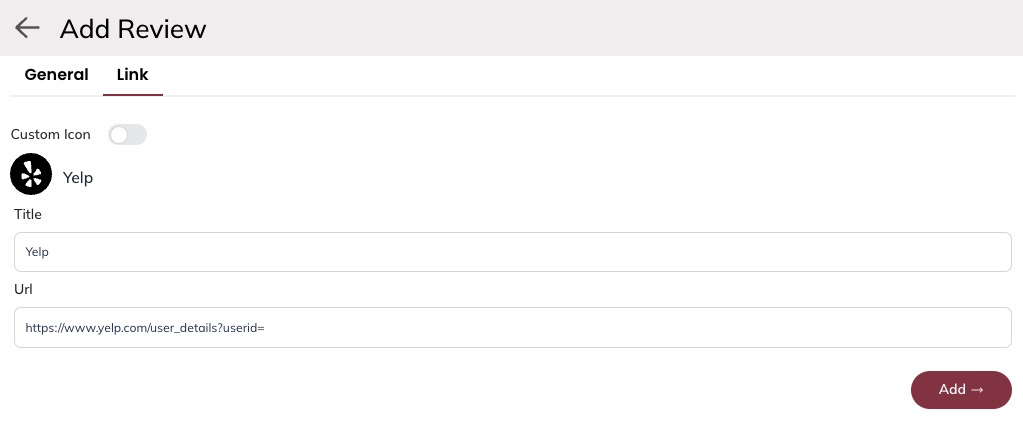
Click on the 'Add' button to add a review site to your Reviews tile.
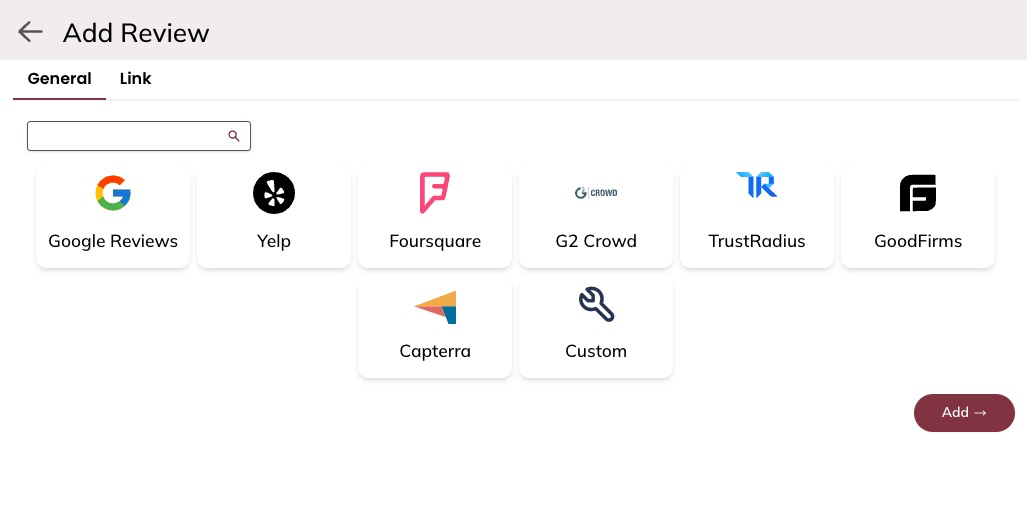
Select the
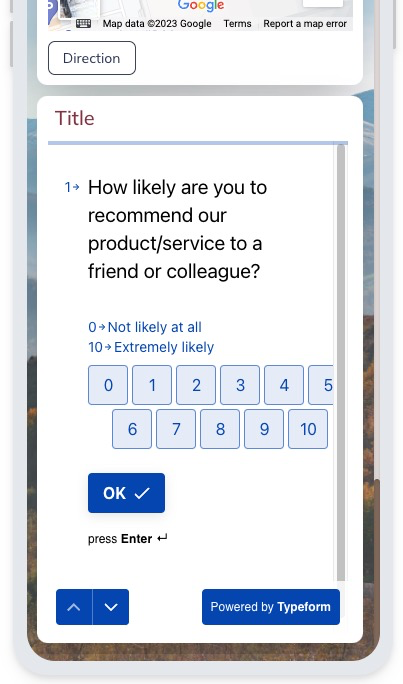
Typeform Tile
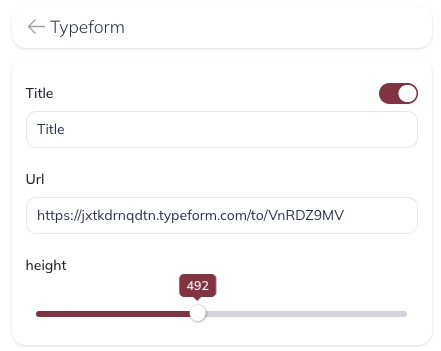
Typeform Tile Settings
© 2023 EnMobi Inc. LinkedCards is owned and operated by EnMobi Inc.